Shader backgrounds
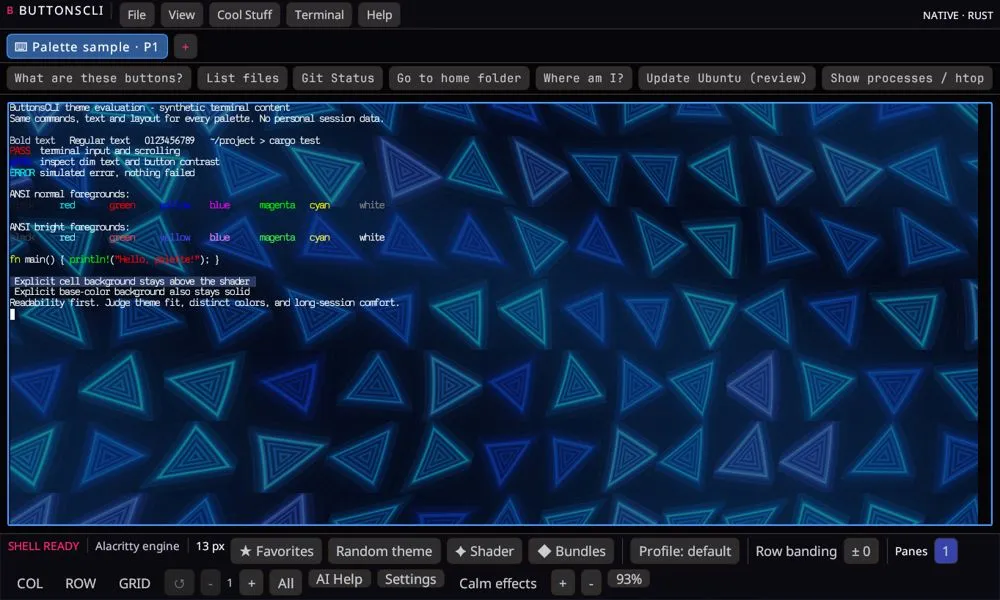
A shader is a small program that paints an animated picture behind the terminal text, on the GPU. ButtonsCLI comes with 34 patterns, can run your own code, and can have AI write new ones (AI shaders). Text always draws on top, and the Strength slider keeps it readable.
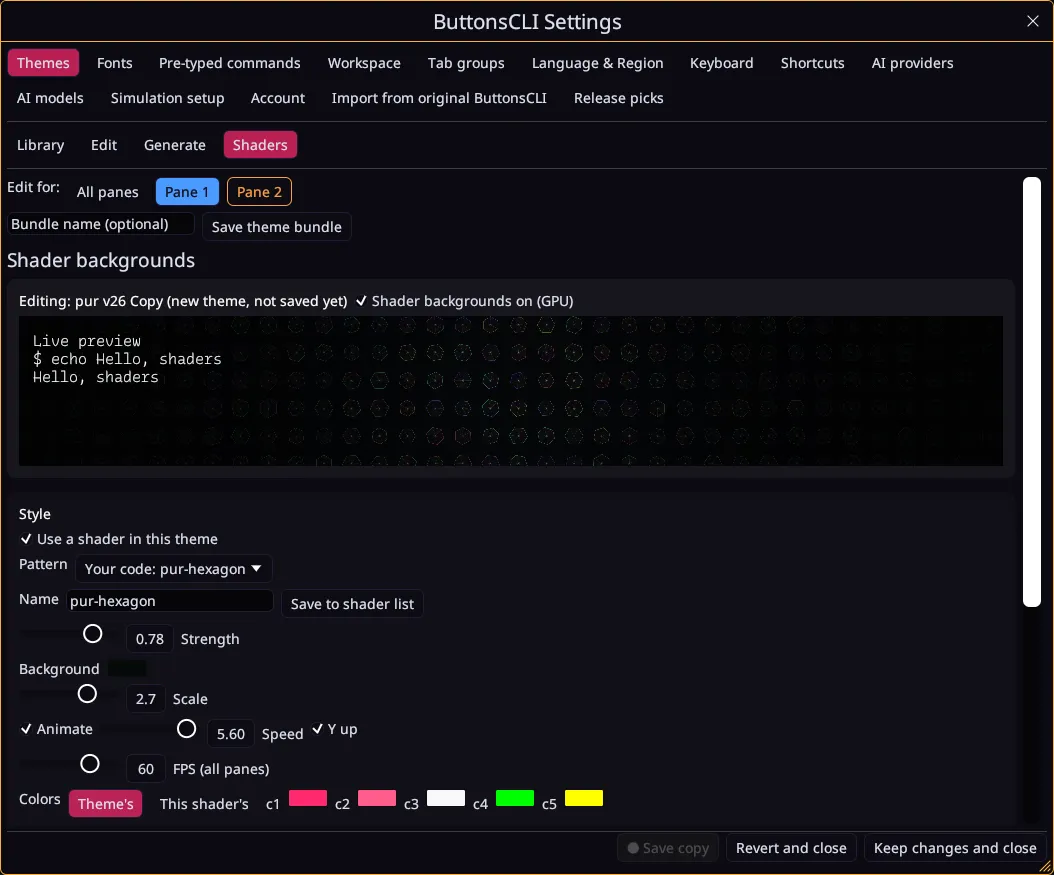
Open Settings → Themes → Shaders.
Some looks here are saved with a higher Strength than the default (0.35), so their motion shows in the picture. Strength fades a shader toward the background color, which keeps text readable. Nothing is stuck at this level: lower it any time.
The page, top to bottom
Section titled “The page, top to bottom”- Edit for — which pane you are changing (only shown with 2+ panes).
- Live preview — your shader behind sample text. Every change shows here and in the pane right away.
- Style — pattern, strength, motion, colors and sliders.
- Create with AI — describe a look; see AI shaders.
- Code — the shader’s source, for tweaking (reference).
If Shader backgrounds on (GPU) is off, panes show the theme’s gradient instead. Turn it on at the top of the page.
Pattern
Section titled “Pattern”The Pattern picker lists, in order:
| Entry | What it is |
|---|---|
| + New blank shader | An empty start for AI or your own code. |
| Your code | The custom code this theme has now. |
| ★ Saved shaders | Shaders you saved to your list (below). |
| ◆ Built-in shaders | Custom shaders that come with the app. |
| Presets | The 34 built-in patterns: Aurora, Lava lamp, Synthwave, Galaxy swirl, VHS tape, CRT static and more. |
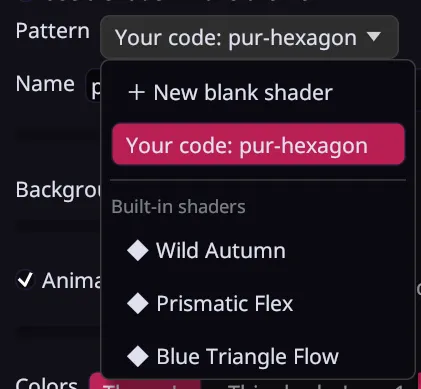
Picking a preset sets your code aside; pick Your code to get it back.
Strength, Background, Scale, Speed
Section titled “Strength, Background, Scale, Speed”- Strength — how strongly the shader shows. Lower it if text gets hard to read; most looks sit between 0.3 and 0.7.
- Background — the terminal background color, right next to Strength: at Strength 0 the shader fades to exactly this color.
- Scale — zoom the pattern in or out.
- Animate and Speed — untick Animate for a still picture.
- Y up (custom code only) — on by default. Shader code usually treats “up” as up; turn it off if an older shader now looks upside down.
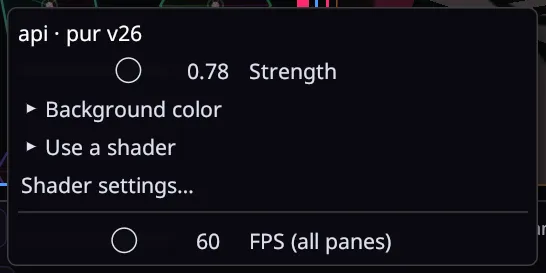
- FPS (all panes) — how many times a second shaders and effects change, for every pane at once (1–240, default 60). Motion in the status bar changes only their speed, never the frame rate. Lower FPS to save GPU, for example while recording with OBS. It’s a real cap: typing and mouse moves don’t make shaders run faster. Settings → Debug shows how many animation frames really came in the last second.
Colors: c1 to c5
Section titled “Colors: c1 to c5”Shaders get five colors, c1–c5, shown as swatches.
- Theme’s — the colors come from the theme: c1–c3 from its gradient or accent colors, c4 and c5 from its two most colorful terminal colors. Change the theme and the shader follows.
- This shader’s — the shader keeps its own five colors. Click a swatch to change one.
- Copy theme’s — fill this shader’s colors from the theme, then adjust.
Switching to Theme’s does not throw your own colors away; switch back and they return. Editing a theme swatch switches to This shader’s automatically, starting from the theme’s colors.

Some presets (the full-color ones like Neon plasma and Tropical) pick their own colors and ignore c1–c5.
Sliders
Section titled “Sliders”Tick Sliders for this shader to see and add sliders. A slider is a named
number the code uses, like speed or fireball_size. A shader can have up
to four. AI adds them for you when it writes a shader with sliders on.
Quick controls without Settings
Section titled “Quick controls without Settings”- Status bar → ✦ Shader acts on the focused pane: Strength, Background color, Use a shader (your ★ saved list, then ◆ built-ins), and the FPS limit.
- Right-click a pane → Shader has the same controls for that pane.
- Status bar → ◆ Bundles applies a saved (★) or built-in (◆) bundle.
These change only that pane, the same way Edit for: Pane N does, and the change is saved like any pane edit: as a numbered personal theme when you switch panes, close Settings or quit.
◐ Look → Override panes sets one Strength for every pane’s shader at once, whatever each theme says; moving its slider turns it on. Nothing is saved into the themes, so unticking it puts each pane’s own Strength back. While it is on, the pane Strength sliders are greyed out.
Idle glow makes a quiet terminal stand out. Turn it on for one pane in its right-click menu. While the terminal prints, its shader sits at Low; after it has been quiet for a while, the shader ramps up to High, and new output brings it back down. Set Low, High, the quiet time and the ramp time under ◐ Look → Idle glow. While it is on, that pane’s Strength slider is greyed out, and Override panes wins over it. It is not kept when you restart the app.
Your shader list
Section titled “Your shader list”Save shaders you like so they show up in Pattern → ★ Saved shaders for any theme or pane:
- Type a name in the name box under Pattern (or leave it empty for Shader 1, 2, …).
- Click Save to shader list. Its colors are saved with it.
- Later, Update in shader list saves changes; Remove from list deletes it from the list (themes already using it keep their copy).
Saving
Section titled “Saving”A shader is part of a theme. When you are editing All panes, saving the theme saves the shader. When you are editing one pane, your changes stay on that pane and are saved automatically as a numbered personal theme when you switch panes or close Settings. To use a shader in many places, save it to your shader list or a theme bundle.
Performance
Section titled “Performance”Shaders run on the GPU at the FPS setting (60 by default), and hidden panes don’t draw. If your machine struggles, lower the number of animated panes, untick Animate, or use Calm in the Library.
Motion N% in the status bar speeds up or slows down every pane’s shader and gradient motion at once: drag it left or right, or double-click to type. 0% holds the current frame and stops redrawing, 100% is each theme’s own speed, and 200% is double. ◐ Look next to it has Minimal, Moderate and Showoff presets, Calm effects, the GPU shader switch, Override panes (one Strength for every pane), Shuffle, which changes the theme every few minutes, window opacity, the display language and Test text.