Getting started
Install
Section titled “Install”One command (installs the newest release for your user, no admin rights, and adds ButtonsCLI to your app launcher or Start Menu):
Linux and macOS:
curl -fsSL https://buttonscli.com/install.sh | shWindows PowerShell:
irm https://buttonscli.com/install.ps1 | iexWindows Command Prompt:
curl -fsSL https://buttonscli.com/install.cmd -o install.cmd && install.cmd && del install.cmdThe script checks the download against the release’s SHA-256 list. On Linux
it lists any missing window/graphics libraries and offers to install them;
add -s -- --deps after sh to install them without asking, or
-s -- --uninstall to remove ButtonsCLI (your settings stay). Read the script
first if you like: open the same URL in a browser.
Download instead: get the file for your system from the
GitHub Releases
page — a .zip for Windows, a .tar.gz or AppImage for Linux, or the macOS
.dmg. These builds aren’t code-signed yet, so Windows SmartScreen and macOS
may warn the first time; the one-command install avoids most of that.
Build with Rust: install current stable Rust and Git, then:
cargo install --git https://github.com/detroittommy879/buttonscli-native.git --branch main --locked --bin buttonsclibuttonscliRun the same command again to update. Linux needs a few system packages; see Building.
The window
Section titled “The window”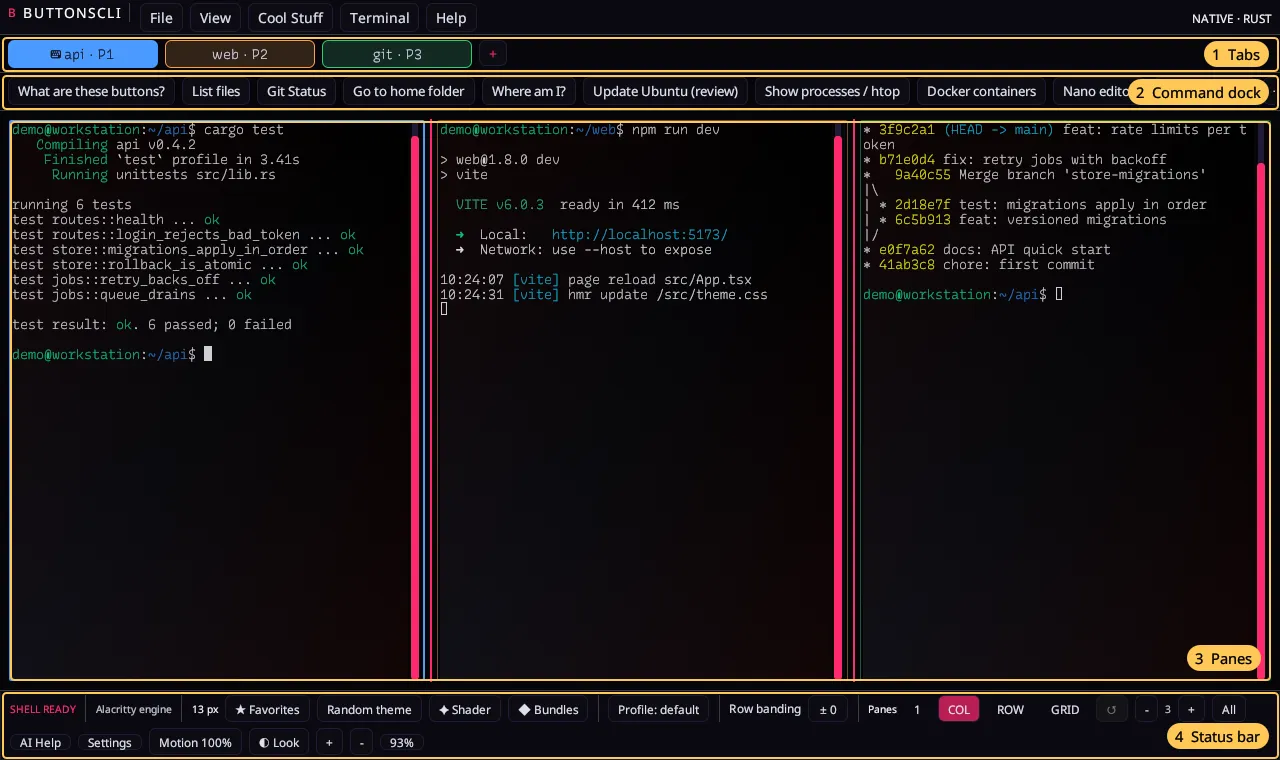
| Area | What it does |
|---|---|
| Tab bar (top) | One tab per terminal. The colored tab is the one getting your typing. |
| Panes (middle) | The terminals on screen, arranged as columns, rows or a grid. |
| Command dock | Your buttons. Click one to type its command. |
| SSH dock | Buttons for servers you connect to. |
| Status bar (bottom) | Favorite themes, random theme, ✦ Shader and ◆ Bundles quick menus, profile, layout and Settings. |
Right-click almost anything — a tab, a pane, a button — for its menu.
First five minutes
Section titled “First five minutes”- Press Ctrl+Shift+T (Command+Shift+T on macOS) a couple of times to open more terminals. They tile automatically.
- Right-click a pane → Random theme until you see one you like.
- Open Settings (Ctrl+Shift+,) → Themes → Shaders and turn on Shader backgrounds on (GPU).
- Pick a Pattern, or try Create with AI after you set up AI.
- Click Save current looks under Library → Theme bundles to keep the set. See Theme bundles.
Keyboard shortcuts
Section titled “Keyboard shortcuts”Primary is Ctrl on Windows/Linux and Command on macOS.
| Action | Shortcut |
|---|---|
| New / close / reopen tab | Primary+Shift+T / Primary+Shift+W / Primary+Shift+U |
| Copy / paste | Primary+Shift+C / Primary+Shift+V |
| Settings | Primary+Shift+, |
| Command history | Primary+Shift+H |
| Move focus from the terminal to the app controls | F6 |
| Quit | Primary+Shift+Q |
Change them in Settings → Shortcuts. Arrows, Tab and Escape always go to the terminal, so shell programs work normally.
Where your stuff is saved
Section titled “Where your stuff is saved”Everything lives in ~/.buttonscli-native/ (on Windows,
%USERPROFILE%\.buttonscli-native\). Personal themes are in
profiles/<profile>/themes/. Running shells are not restored after a restart;
settings, buttons, themes, bundles and saved shaders are.