ButtonsCLI guide
How to use ButtonsCLI, a fast native terminal with command buttons, per-pane themes, GPU shader backgrounds and AI-made looks.
ButtonsCLI is a native terminal for people who would rather click than memorize key combos. Long commands go on buttons, panes arrange themselves, and every pane can have its own theme, font and animated shader background. The shaders can be written for you by AI.
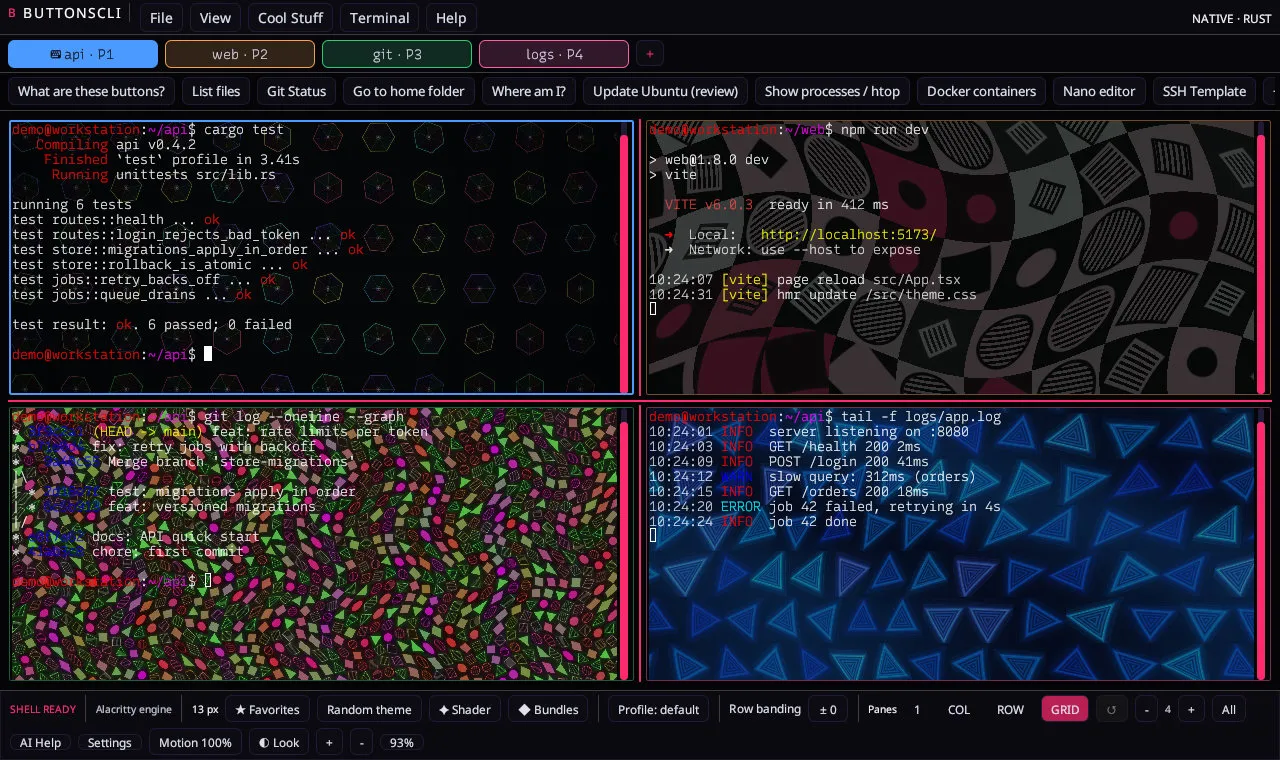
Some looks here are saved with a higher Strength than the default (0.35), so their motion shows in the picture. Strength fades a shader toward the background color, which keeps text readable. Nothing is stuck at this level: lower it any time.
Start here
Section titled “Start here”| If you want to… | Read |
|---|---|
| Install it and open your first terminals | Getting started |
| Arrange panes and put commands on buttons | Workspace and buttons |
| Change colors, fonts and effects | Themes |
| Give each pane its own look and save the set | Theme bundles |
| Add an animated background behind the text | Shader backgrounds |
| Have AI write shaders for you | AI shaders |
| Have AI make a whole theme | AI themes |
| Connect ChatGPT or an API key | Set up AI |
| Write or tweak shader code yourself | Shader code reference |
| Share your looks or ship them with the app | Sharing looks |
| See what the built-in looks can do | Theme gallery |
| Fix something that looks wrong | Troubleshooting |
The ideas behind it
Section titled “The ideas behind it”- Panes are slots. Pane 1, Pane 2… are the places on screen. Looks, bundles and “Edit for” all talk about slots, so a bundle works with any terminals.
- Nothing blocks you. Switching panes or closing Settings never asks you to save first; unsaved edits are saved as a numbered copy.
- Text stays readable. Shaders sit behind the text. The Strength slider is how bright they get, and terminal text is never distorted.
- AI is optional. Everything works without it. When you use it, you pick the provider and model, and keys stay in your system’s credential store.