Workspace and buttons
Esta página aún no está disponible en tu idioma.
Tabs and panes
Section titled “Tabs and panes”Every tab is a running terminal. As many as fit the window are shown at once as panes; the rest keep running in the background.
- Click a tab that is on screen to type in it.
- Click a tab that is off screen to swap it into the pane you are using.
- Layouts: COL, ROW and GRID in the status bar. Drag the dividers to resize.
- Pane numbers (Pane 1, Pane 2…) are screen positions, not terminals. Each position has its own color on its tab and border, so you can tell them apart.
- Tab groups: save the set of open terminals under a name and reopen it later from the tab menu.
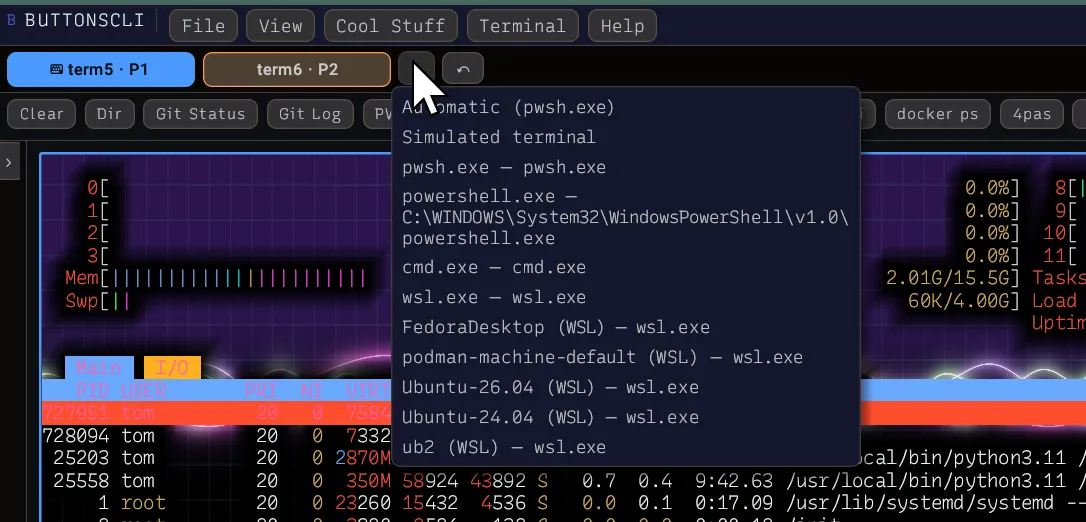
- New tab: + after the tabs lists every shell found on your computer (PowerShell, cmd, each WSL distro…) and the simulated terminal.
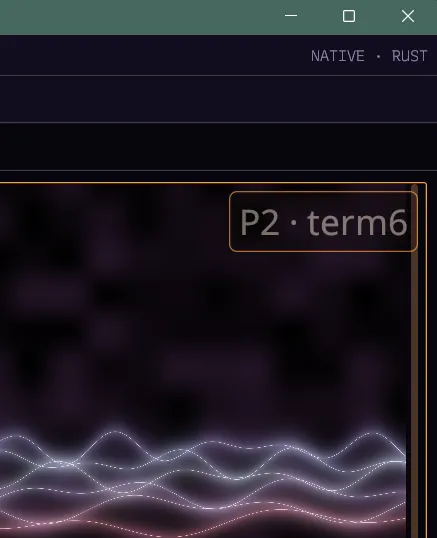
- Which terminal is this? Hover a pane and its tab name and pane number show in the corner, in that pane’s own theme and font. Turn it off or change its opacity under Settings → Themes (Show terminal name on hover).

Command buttons
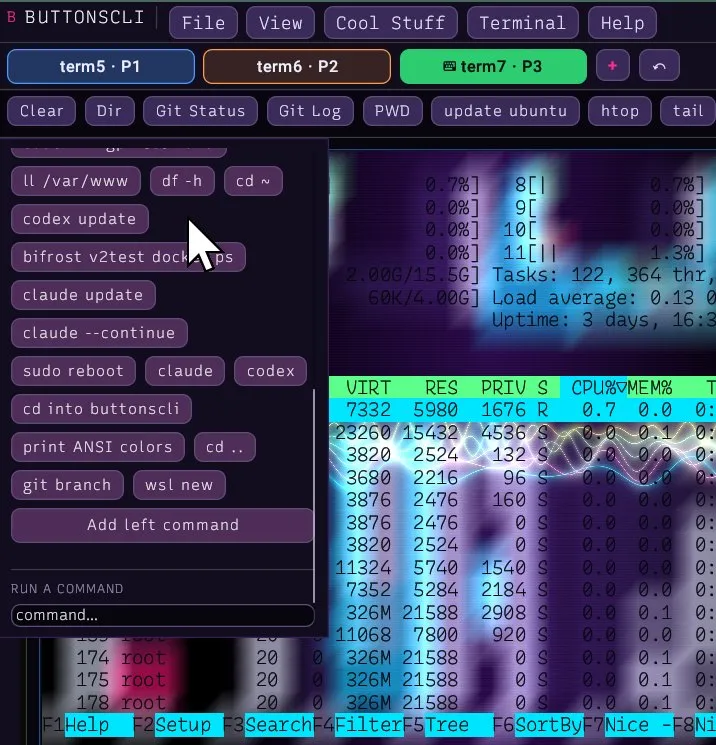
Section titled “Command buttons”A button pastes a command into the active terminal. Optionally it also presses Enter for you.
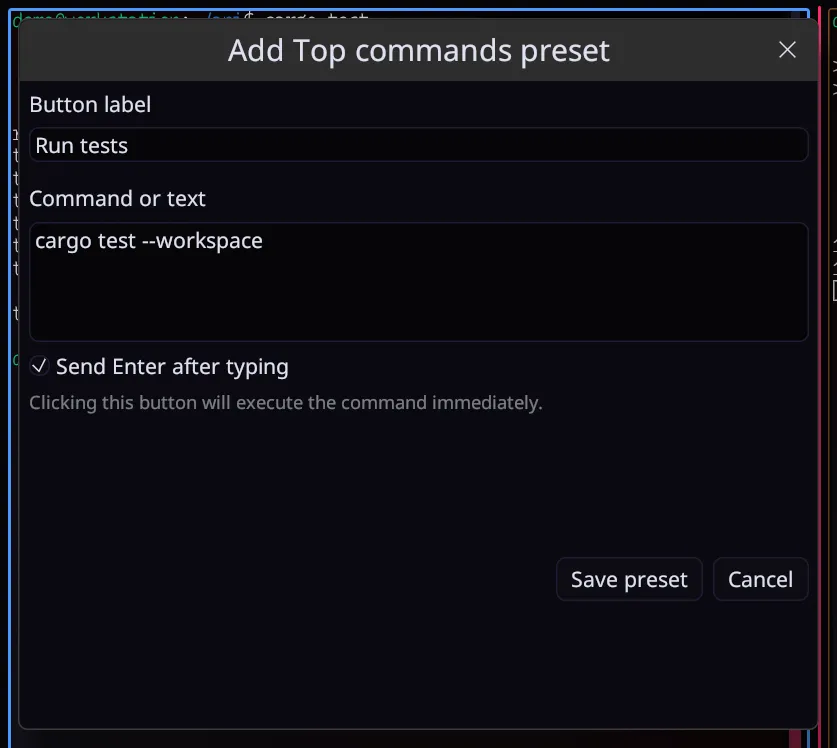
- Click + Add command preset at the end of the command dock.
- Give it a label and the command text.
- Choose Send Enter after typing if it should run straight away, or Types only to check it first.
The SSH dock works the same way for server connections. Docks can resize, collapse and auto-hide.
With Auto-hide command dock on (Settings → Workspace), the left dock folds into a thin strip at the window edge. Move the mouse there and it slides out over the terminals; it hides again after the Auto-hide delay. Peek area sets how close to the edge the mouse has to be.
Right-click menus
Section titled “Right-click menus”| On… | You get |
|---|---|
| A pane | Favorite themes, Random theme, Use global theme, copy, Paste, Command history…, select all, clear screen, rename, Reset mouse mode (only while a program uses the mouse), tmux, auto-tile, close, a Shader section (Strength, background color, use a shader) and Text backing colors… |
| A tab | Rename, move left/right, auto-tile, close |
| A button | Run, edit, delete |
Pane actions apply to the pane you right-clicked, even if another one has keyboard focus.
Command history
Section titled “Command history”Can’t remember a command you typed last week? Press Primary+Shift+H (or right-click a pane → Command history…). A list of earlier commands opens over the pane, newest first, read from this computer’s bash, zsh, fish and PowerShell history files. Type to filter (every word must match), pick one with ↑/↓ or the mouse, then:
- Enter types it at the prompt so you can edit it first.
- Shift+Enter or a double-click runs it.
- Esc closes the list.
Commands typed inside SSH sessions are kept on the remote machine, so they are not listed. Turn the popup off in Settings → Keyboard & clipboard.
Keep sessions running with tmux
Section titled “Keep sessions running with tmux”tmux runs your shells inside a session that stays alive on that machine when the connection drops or you close ButtonsCLI; reconnecting picks up exactly where you left off, with programs still running. It matters most over SSH: a long build or an AI agent on a server keeps going while your laptop sleeps. Right-click a pane → tmux:
- Attach or start session types
tmux new-session -A -s <tab name>, which starts a session named after the tab or reattaches to it. - List sessions types
tmux ls. - Detach (keep running) types
tmux detach-client; Attach brings the session back later, even from a new window or another computer.
tmux has to be installed on the machine the pane is connected to (for
example sudo apt install tmux). It is not available in Windows shells, but
works in WSL and SSH panes. Inside tmux, tmux handles the mouse: hold
Shift to select text for copying.
Mouse and scrolling
Section titled “Mouse and scrolling”- The wheel scrolls the pane’s history, three lines per notch.
- When a program asks for the mouse (tmux, Vim with
mouse=a, Claude Code, Codex), the wheel and clicks go to that program instead. Hold Shift to scroll or select locally anyway, as in Alacritty. - Full-screen programs that don’t use the mouse (
less,man) get arrow keys from the wheel, so they scroll too. - Copy and paste without the keyboard: drag over text and it is copied as soon as you let go (a short Copied to clipboard label confirms it). Right-click a pane with nothing selected and choose Paste. Right-clicking while text is selected copies it instead. Turn either off in Settings → Keyboard & clipboard.
- Text copied from full-screen programs (Claude Code, Codex, htop) keeps its line breaks; blanks those programs paint up to the window edge are trimmed.
- Pasted text has control characters removed, so a paste can’t run hidden commands. Line breaks and tabs are kept.
New versions
Section titled “New versions”When a newer ButtonsCLI release is out on GitHub, a green ⬆ vX.Y.Z available link appears in the status bar next to SHELL READY. Clicking it opens the release page in your browser; nothing is downloaded or installed for you. The app asks GitHub once each time it starts. To stop that, untick Check GitHub for a new release at startup in Settings → Workspace.
Settings while you work
Section titled “Settings while you work”UI size
Section titled “UI size”Settings → Workspace → UI size makes everything (text, buttons, terminals) larger or smaller together. Auto (the default) picks a size from your monitor: 100% on large workspaces such as 4K at 125% scaling, down to 80% on a 1080p screen at 100%. Untick Auto to choose your own size. Windows display scaling still applies on top.
Developer notices
Section titled “Developer notices”You can opt in to Receive signed developer notices during setup or in Settings → Workspace. These are short status-bar messages or closeable windows from the ButtonsCLI developer, for security notices and product news. Promotions and paid feature offers have a separate switch and start off disabled.
Notices are checked at startup and every six hours while the app is open.
Only messages signed with a trusted developer key are shown. You can dismiss each
message, turn the channel off, or set BUTTONSCLI_NO_ANNOUNCEMENTS=1.
Links open only when clicked; nothing is installed. The host at buttonscli.com
sees your IP address, but receives no terminal content or profile identifiers.
Detached Settings
Section titled “Detached Settings”Open Settings detached (its own window) and you can keep typing in the terminals. Changes preview live. Revert and Close undoes everything since you opened it.