Getting started
Dieser Inhalt ist noch nicht in deiner Sprache verfügbar.
Install
Section titled “Install”One command (installs the newest release for your user, no admin rights, and adds ButtonsCLI to your app launcher or Start Menu):
Linux and macOS:
curl -fsSL https://buttonscli.com/install.sh | shWindows PowerShell:
irm https://buttonscli.com/install.ps1 | iexWindows Command Prompt:
curl -fsSL https://buttonscli.com/install.cmd -o install.cmd && install.cmd && del install.cmdThe script checks the download against the release’s SHA-256 list. On Linux
it lists any missing window/graphics libraries and offers to install them;
add -s -- --deps after sh to install them without asking, or
-s -- --uninstall to remove ButtonsCLI (your settings stay). Read the script
first if you like: open the same URL in a browser.
Download instead: get the file for your system from the
GitHub Releases
page — a .zip for Windows, a .tar.gz or AppImage for Linux, or the macOS
.dmg. These builds aren’t code-signed yet, so Windows SmartScreen and macOS
may warn the first time; the one-command install avoids most of that.
Build with Rust: install current stable Rust and Git, then:
cargo install --git https://github.com/detroittommy879/buttonscli-native.git --branch main --locked --bin buttonsclibuttonscliRun the same command again to update. Linux needs a few system packages; see Building.
The window
Section titled “The window”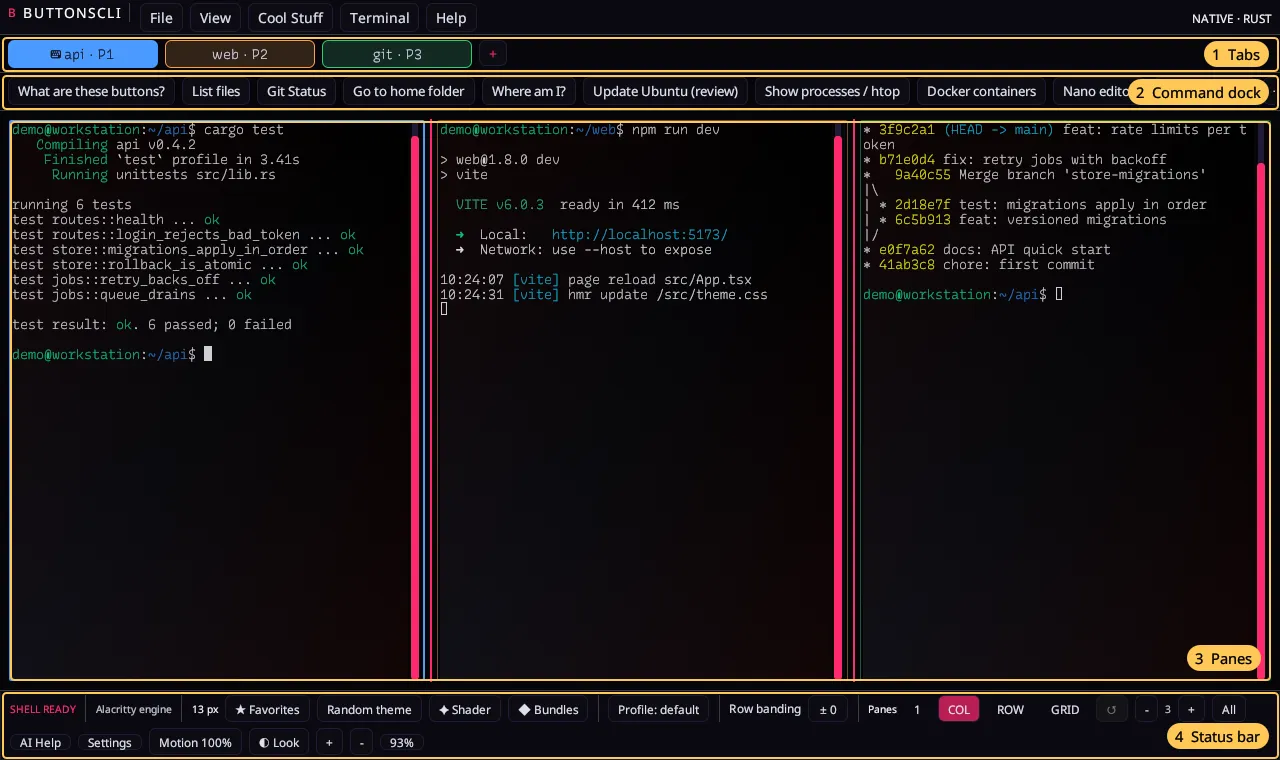
| Area | What it does |
|---|---|
| Tab bar (top) | One tab per terminal. The colored tab is the one getting your typing. |
| Panes (middle) | The terminals on screen, arranged as columns, rows or a grid. |
| Command dock | Your buttons. Click one to type its command. |
| SSH dock | Buttons for servers you connect to. |
| Status bar (bottom) | Favorite themes, random theme, ✦ Shader and ◆ Bundles quick menus, profile, layout and Settings. |
Right-click almost anything — a tab, a pane, a button — for its menu.
First five minutes
Section titled “First five minutes”- Press Ctrl+Shift+T (Command+Shift+T on macOS) a couple of times to open more terminals. They tile automatically.
- Right-click a pane → Random theme until you see one you like.
- Open Settings (Ctrl+Shift+,) → Themes → Shaders and turn on Shader backgrounds on (GPU).
- Pick a Pattern, or try Create with AI after you set up AI.
- Click Save current looks under Library → Theme bundles to keep the set. See Theme bundles.
Keyboard shortcuts
Section titled “Keyboard shortcuts”Primary is Ctrl on Windows/Linux and Command on macOS.
| Action | Shortcut |
|---|---|
| New / close / reopen tab | Primary+Shift+T / Primary+Shift+W / Primary+Shift+U |
| Copy / paste | Primary+Shift+C / Primary+Shift+V |
| Settings | Primary+Shift+, |
| Command history | Primary+Shift+H |
| Move focus from the terminal to the app controls | F6 |
| Quit | Primary+Shift+Q |
Change them in Settings → Shortcuts. Arrows, Tab and Escape always go to the terminal, so shell programs work normally.
Where your stuff is saved
Section titled “Where your stuff is saved”Everything lives in ~/.buttonscli-native/ (on Windows,
%USERPROFILE%\.buttonscli-native\). Personal themes are in
profiles/<profile>/themes/. Running shells are not restored after a restart;
settings, buttons, themes, bundles and saved shaders are.