v0.8.1 · Live on all platforms

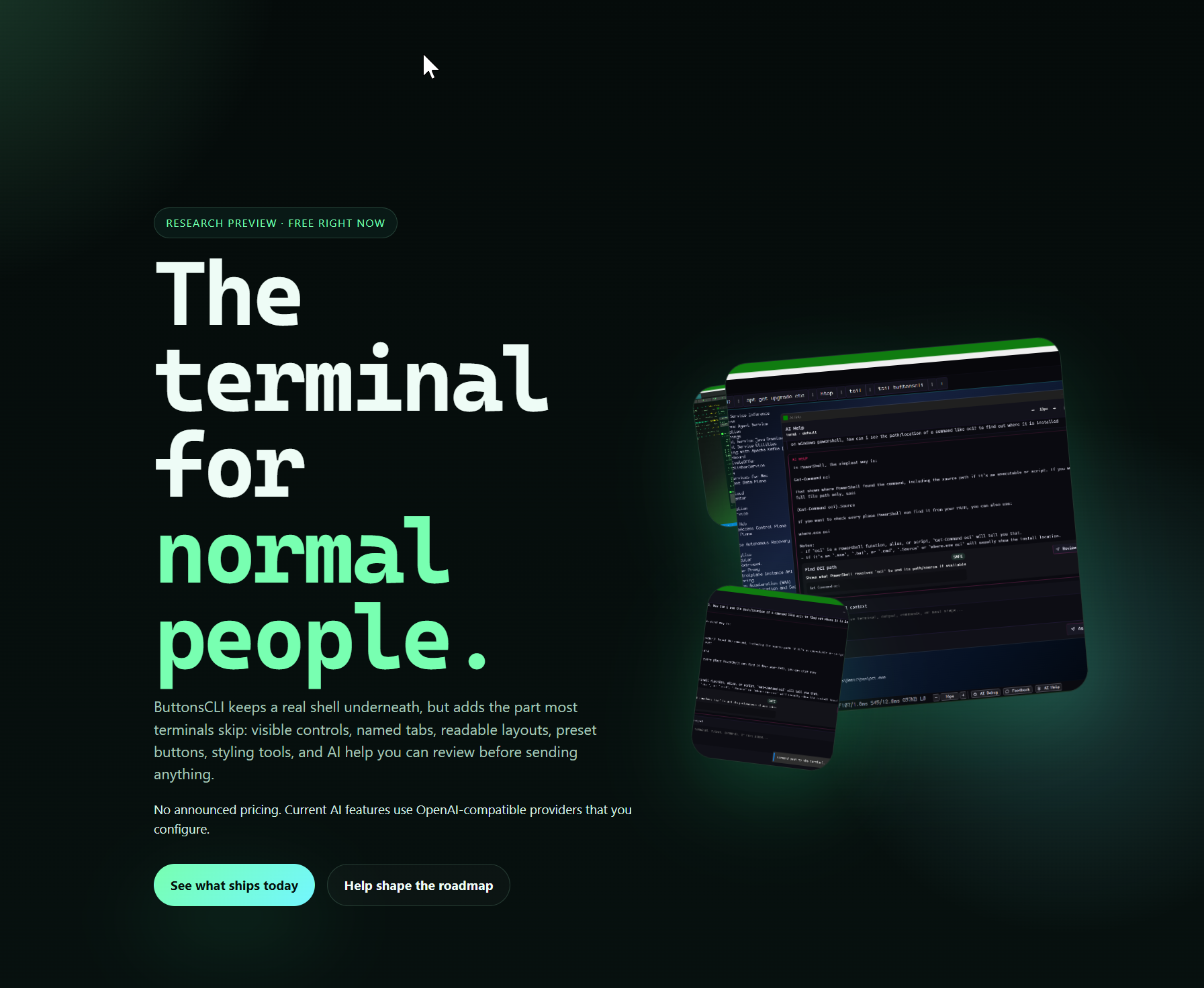
The terminal for
normal people.

THE TERMINAL FOR YOU!

The terminal on easy mode.

Built for people who have to use terminals but don't enjoy them. For those who outright hate memorizing commands. For neurodivergent minds that shouldn't have to remember 25 keyboard shortcuts just to get work done. If you use the terminal infrequently and resent how rigid and minimalist every other option is — this one was made for you.

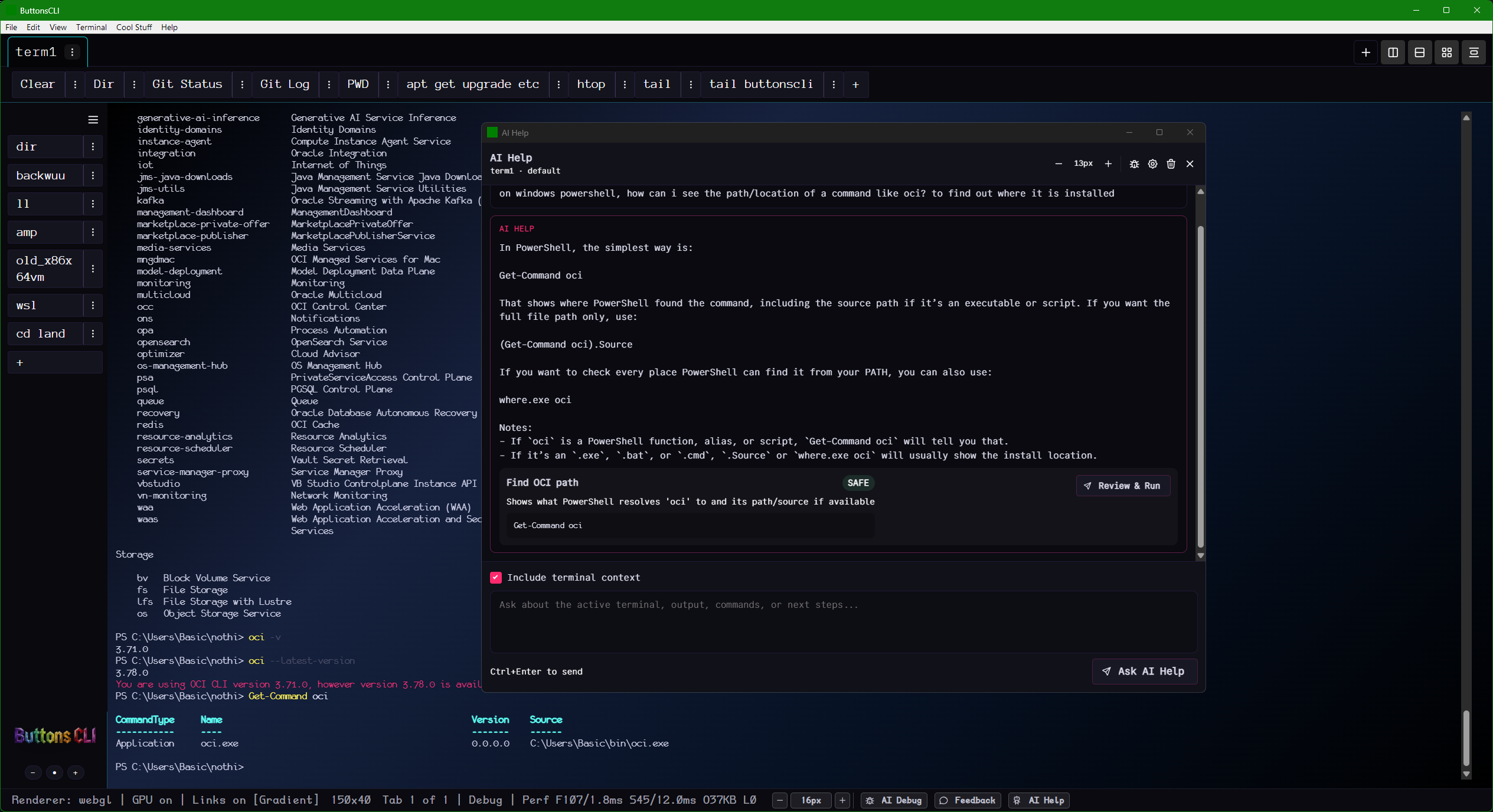
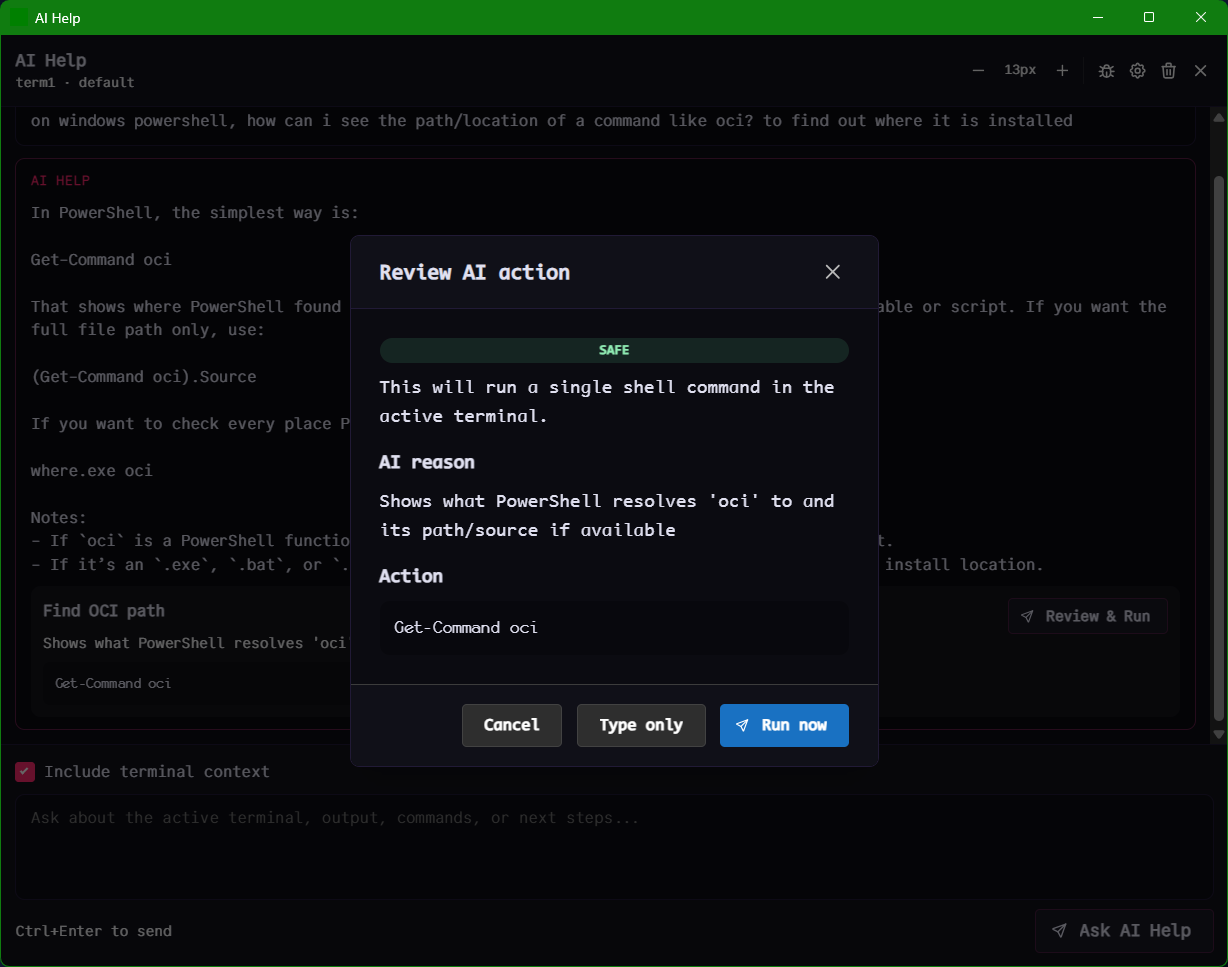
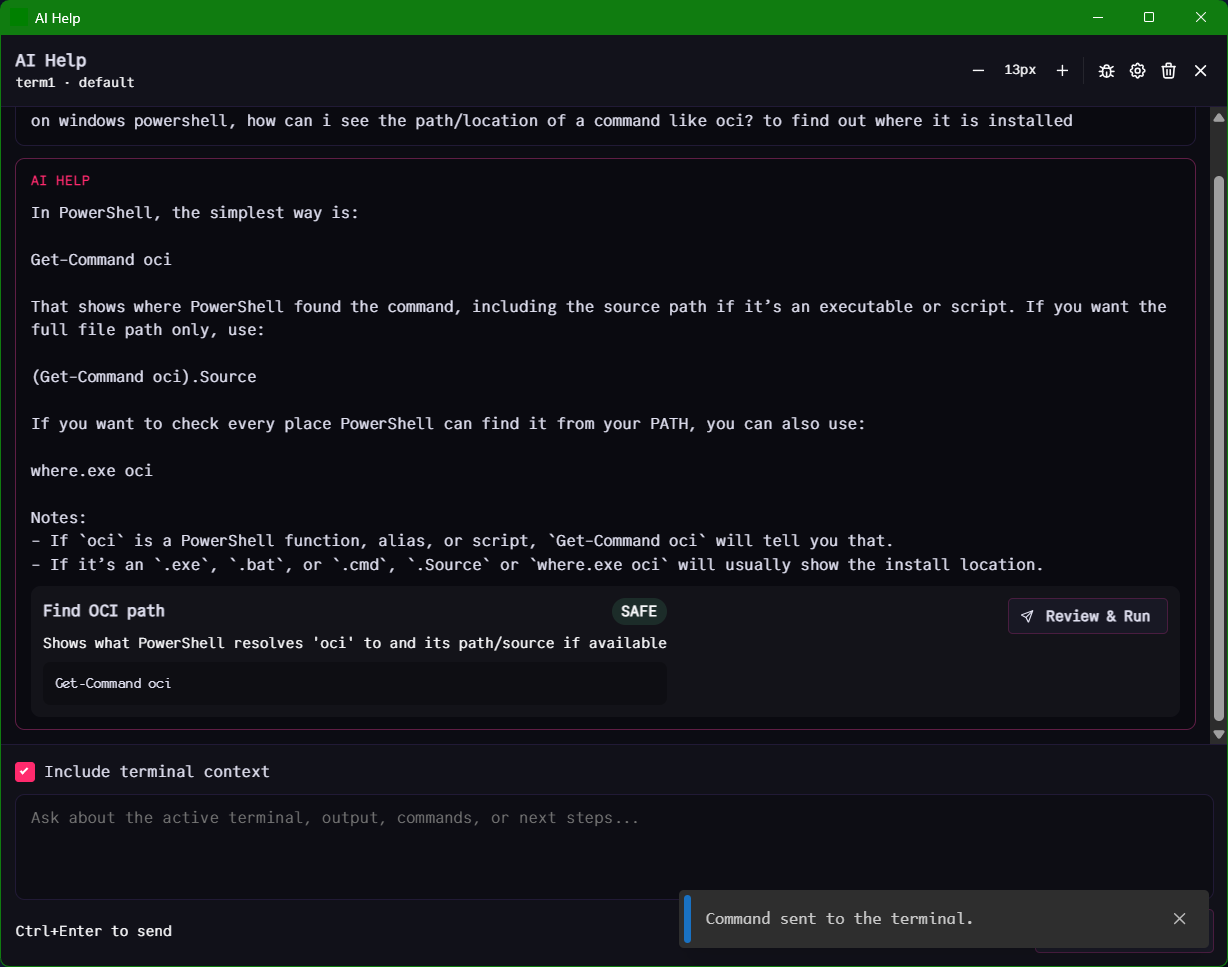
Terminal with AI Help window open, showing a SAFE command Get-Command oci with Review & Run button

AI Help sits next to your terminal, generates a command with a safety label, and waits for you to review it before anything runs. No context-switching to a browser required.
Terminal look scary? Not ours.

We put the controls on screen. You shouldn't need a cheat sheet to use a program you're going to use every day. Buttons, not keyboard combos.

Terminal apps shouldn't require a photographic memory

The rest of the terminal world really loves making this harder than it is.

Most terminal apps were built by people who memorized everything a long time ago and don't see the problem. There is a problem. And it disproportionately affects people who already have enough friction in their workflow.

other terminals

😤25 keyboard shortcuts to do basic things. Memorize them or look them up every single time forever.
📁Change your font by editing YAML in a dotfile in a hidden config directory. Three of them, actually.
🌐Don't know what a command does? Open browser. Search. Copy. Paste. Close tab. Forget tomorrow. Repeat.
💥Type something wrong. Get an error. Zero context about what went wrong or how to fix it.
🔀Copy the error, paste it into ChatGPT or a web browser, switch back, try a fix, repeat. Context switching kills focus.
# How to change your theme in Most Terminals™
$ nano ~/.config/terminal/theme.yaml
# parse error on line 42
$ nano ~/.local/share/terminal/colors.toml
$ nano ~/.config/terminal/overrides/patch.yml
# restart. (it still looks the same)

ButtonsCLI

🔘Buttons for common commands, right on screen. No memorization.
🎨Theme settings in the UI. Sliders, pickers, live preview. Or vibe-code themes with natural language — type "halloween" and watch the interface transform. Hundreds of built-in themes you can save and export.
🤖Ask AI Help what to run. It reads your terminal context. No context-switching to a browser.
🛡️Every AI-generated command gets a SAFE or CAUTION badge. Nothing runs without your ok.
📋Named tabs — call them what they are. "prod-server", "local-dev", "building right now".
🧠AI Coding Agent aware — Stall detection nudges stuck agents. Full MCP server and CLI control across all tabs. Watch every step the agent takes in real time instead of hiding behind text summaries.
🌍Multi-language support with multiple API endpoints, Bring Your Own Key, and a managed backend option coming soon.

AI Help — built in

Ask it. Review it.
Run it or don't.

Type a question. Get a command with a safety label. See the AI's reason. Decide to run it, type-only (no autorun), or cancel. The AI doesn't touch anything until you say so.

"Find where oci binary is" → Get-Command oci SAFE
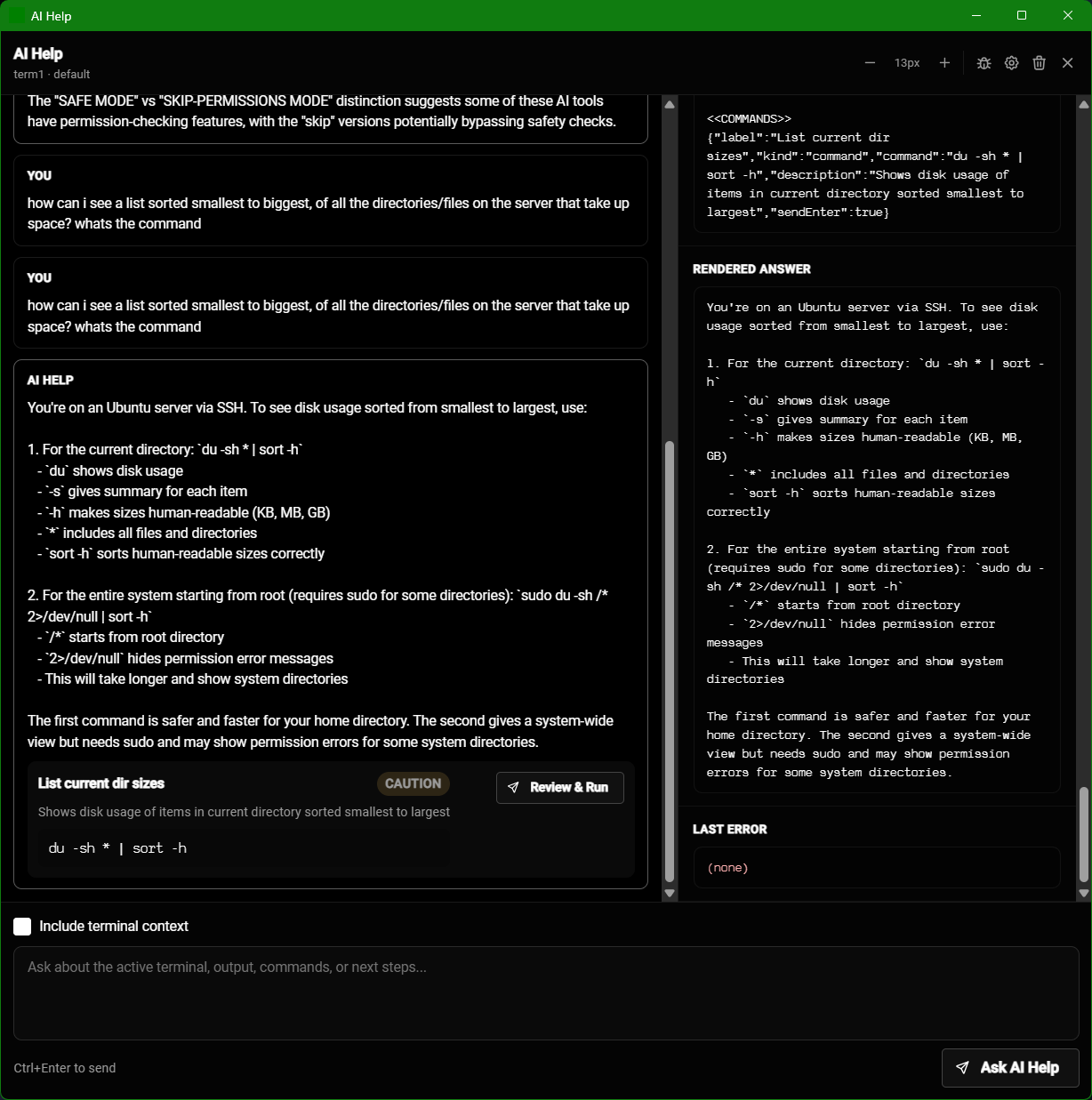
"List directories by size sorted" → du -sh * | sort -h CAUTION
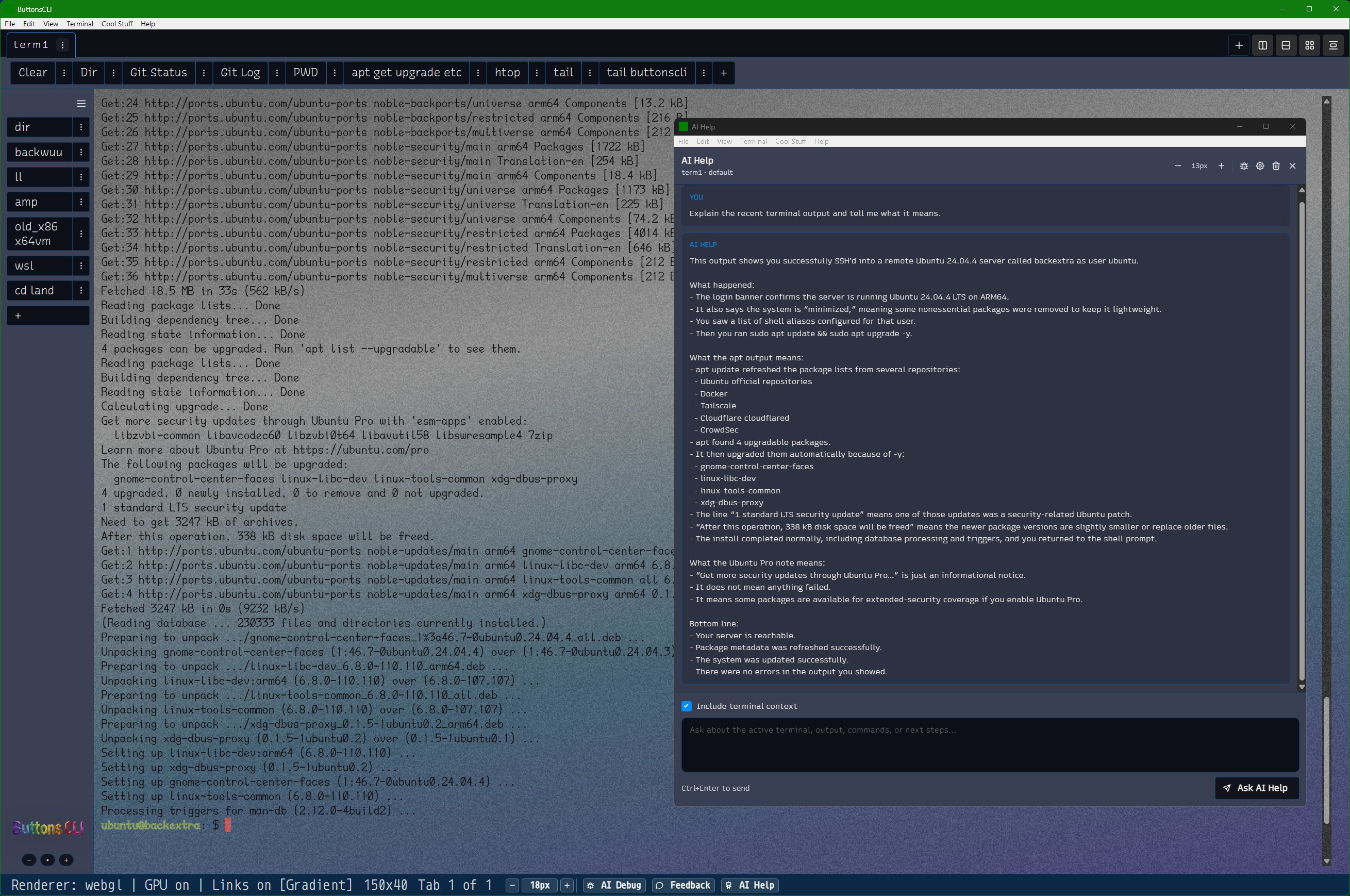
"What does this apt output mean?" → reads your terminal, explains in plain English

Ships with OpenRouter, Groq, Nvidia NIM, Mistral — including free tiers. Guides included. Very little setup. Bring your own API key or use our managed backend (coming soon).

AI Help window: Get-Command oci in a SAFE command block, Review & Run button, Include terminal context checked

SAFE = read-only, low risk. CAUTION = modifies something. You always know before anything runs.

AI Agents — visible multi-tab control

Watch the agent work.
Don't trust it blindly.

Most AI coding agents run in the background and give you a text summary when they're done. ButtonsCLI shows you every tab the agent opens, every command it runs, and every output it reads — in real time. Full MCP server and CLI control means the agent can orchestrate work across multiple tabs and servers simultaneously, and you can see exactly what it's doing.

Multi-pane layout showing AI agent controlling several terminal tabs simultaneously

Multi-tab orchestration

Watch the agent manage two servers at once — running commands, reading logs, and coordinating across tabs. Every step is visible. No black box.

Split screen showing AI agent work across multiple server contexts

Server orchestration in the open

AI-assisted workflows across servers, databases, and build processes — all in visible, reviewable terminal panes. MCP server control lets external tools drive tabs too.

Stall detection keeps agents moving. If an agent gets stuck, the terminal notices and can nudge it with context. You stay in control.

Script your terminal

buttonscli11 — local CLI for controlling
a running ButtonsCLI11 window

The same ButtonsCLI window you can see and click is scriptable from a plain shell. Drive it from another terminal, from CI, or from an AI agent — without losing what's already on screen.

  • List known tabs and create named tabs
  • Rename tabs and open layouts (vertical, horizontal, grid)
  • Read input/output as text in the same CLI
  • Send text with or without Enter; run a command and wait for the result
  • Send control keys like Ctrl-C, A0 and run presets
terminal · buttonscli11
// List tabs
$ buttonscli11 tabs

// Create a named tab
$ buttonscli11 create tab --name "deploy"

// Run a command and wait
$ buttonscli11 run --tab editor --cmd "docker ps"

// Wait for output
$ buttonscli11 wait-for-text --tab active --text "server ready"

$ buttonscli11 feedback HTTP/1.1 200 O.K.  // structured output
$ cd /buttonscli11/control

MCP Helper for AI Agents

Drop the MCP server into your agent config.

Install a self-contained MCP server that works with Claude Desktop, Continue, Cursive, and more. No separate node_modules install required. Reach your connection file automatically.

// Drop this into your agent config:
{
  "mcpServers": {
    "buttonscli11": {
      "command": "node",
      "args": ["/buttonscli/buttons/buttonscli11-mcp.mjs"]
    }
  }
}

Claude Code Skill Included

A Claude Code skill for higher-level
terminal workflows ships in the repo.

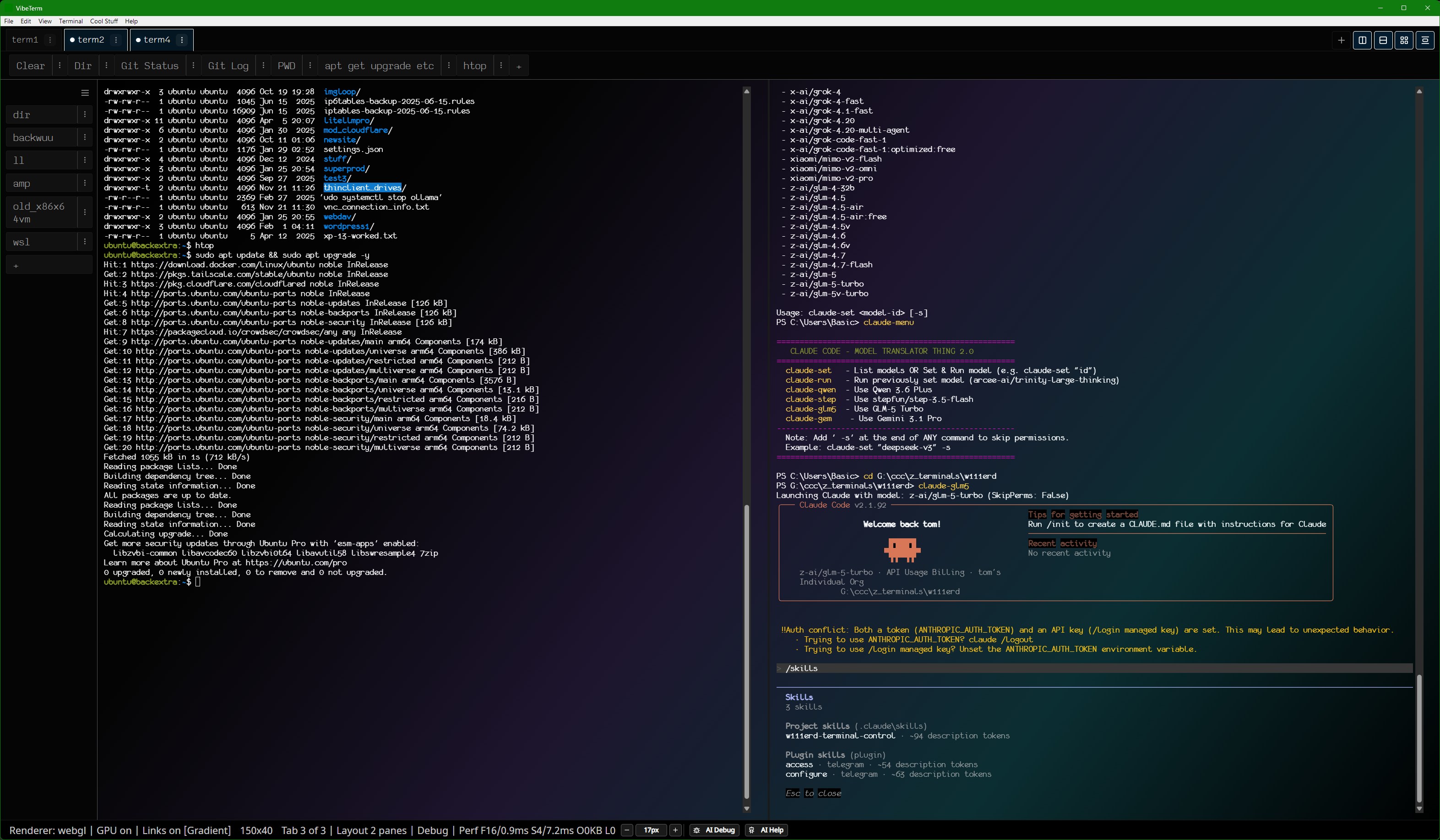
Claude Code on the left, ButtonsCLI terminal panel on the right — agent and terminal visible at the same time

The repo includes a Claude Code skill at .claude/skills/buttonscli11-terminal-control/ for higher-level terminal workflows — the kind of work someone needs to ship, where a Claude fix is part of the deliverable.

Connect Claude Code to your terminal and stop disconnecting and reconnecting. One panel for the coding agent, another for your own terminal. No losing context, no switching windows. Full visibility into what's running.

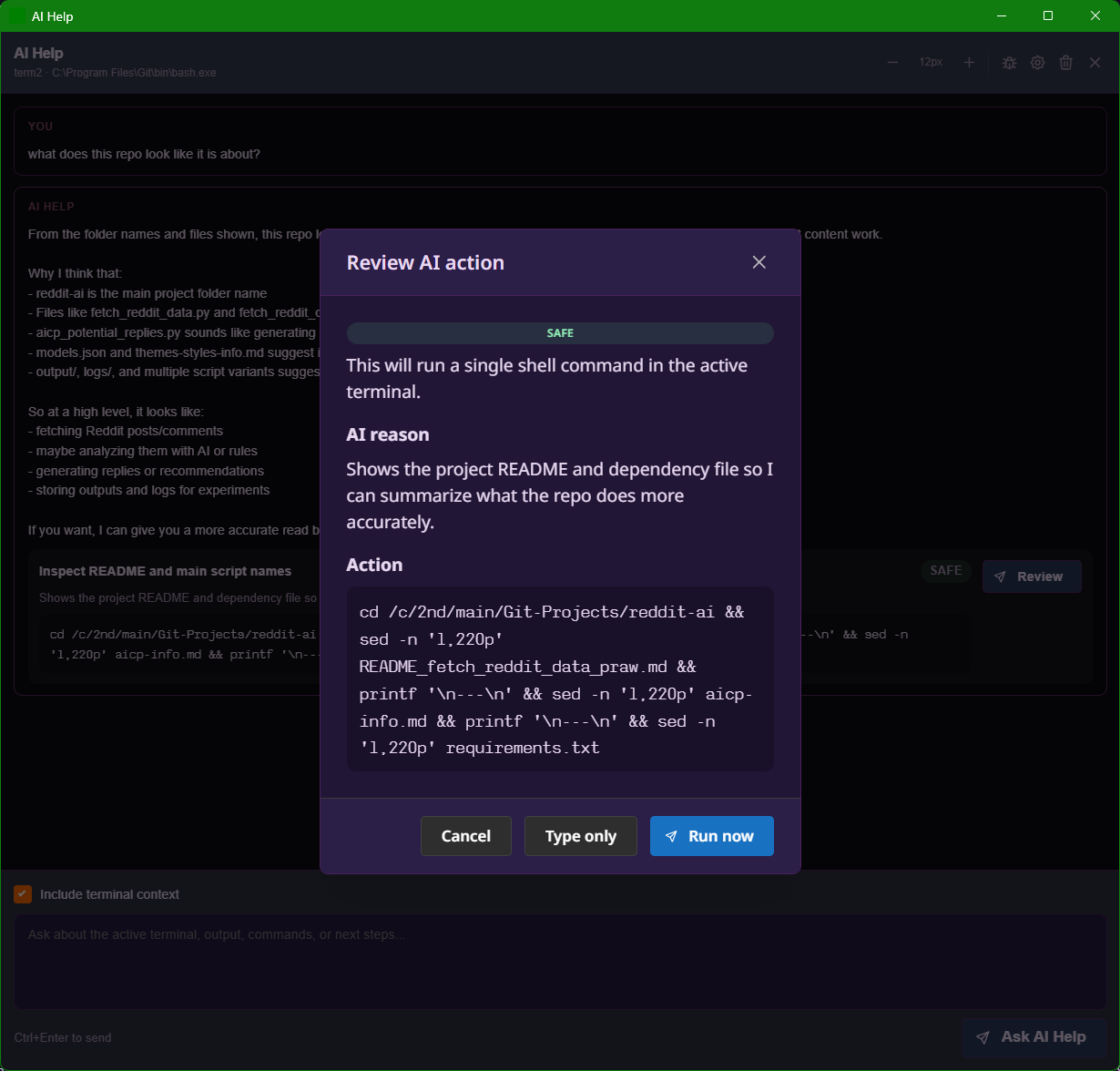
Review before running

The review dialog shows you the command,
the reason, and three options: cancel, type, run.

Review AI action modal showing AI reason, complex bash command, CAUTION badge, Cancel / Type only / Run now buttons

The review modal. It shows you what the AI wants to do and why. You pick what happens next. Always.

How it looks in practice

Auto-tiled layouts, vibe-coded themes,
and shaders that go as wild as you want.

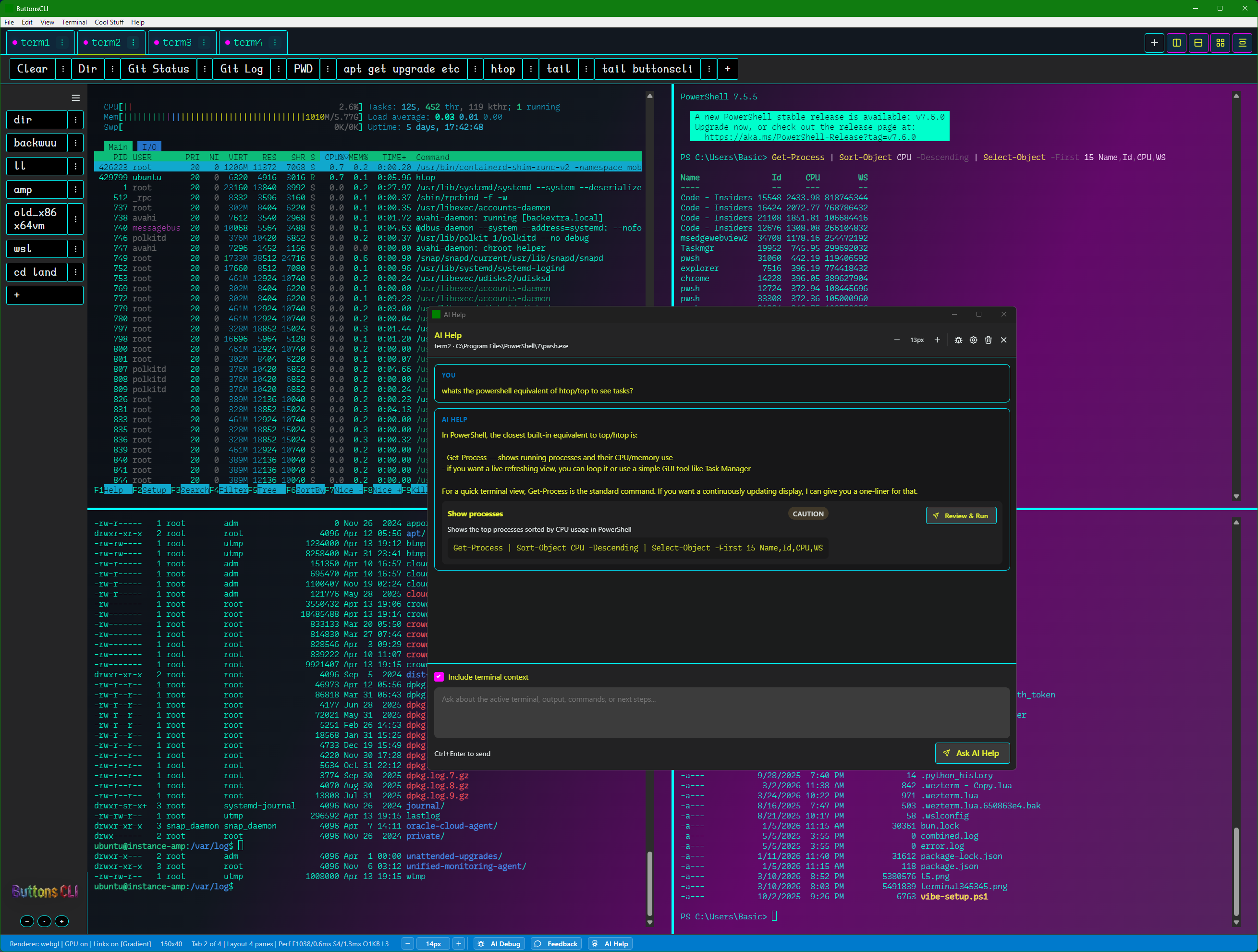
ButtonsCLI automatically arranges terminal windows with accessible tile buttons — no manual dragging. Themes can be fully customized or dynamically vibe-coded using shaders. Want something unorthodox? Type a description and watch the interface transform. The grid layout visual keeps every active tile organized and visible.

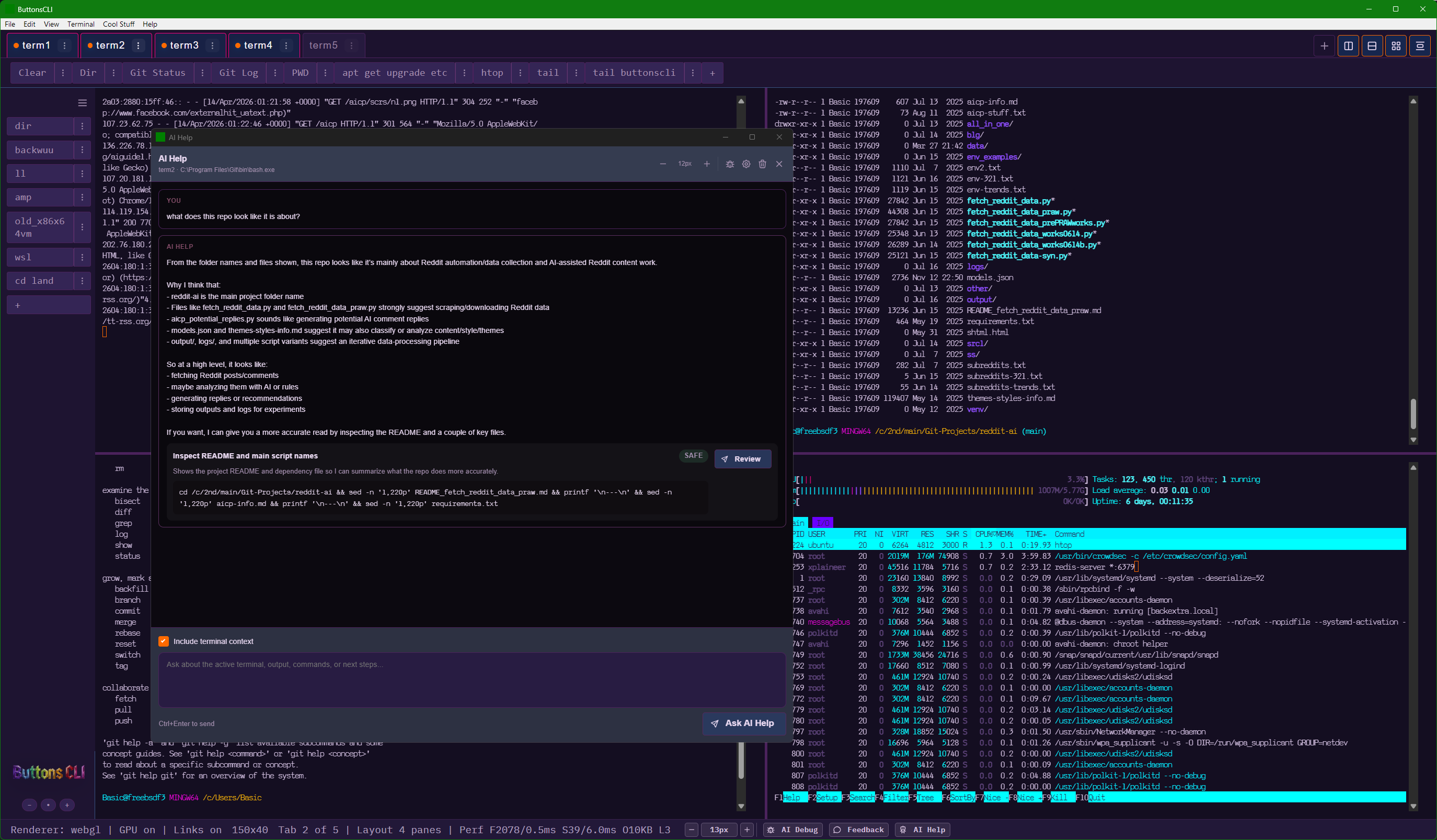
4-pane layout: AI Help in center asking for htop PowerShell equivalent, CAUTION badge, file listings and process output in surrounding panes

4-pane layout. AI Help floating in the middle. CAUTION badge on the PowerShell htop alternative.

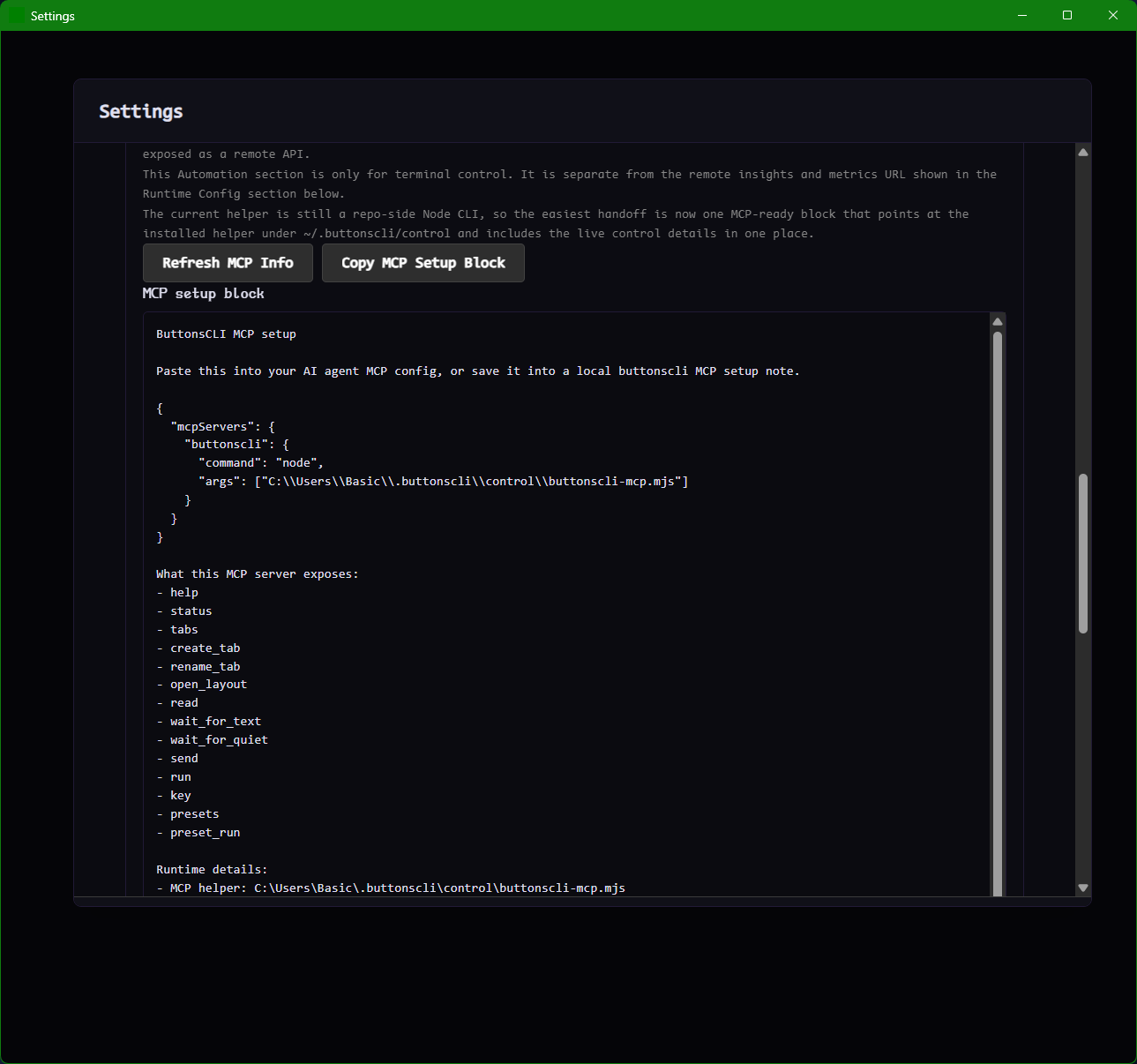
Settings MCP setup block: copyable JSON config for buttonscli MCP server listing exposed commands

The MCP setup block. Copy it into your agent config to let AI tools control tabs and send commands across the entire workspace.

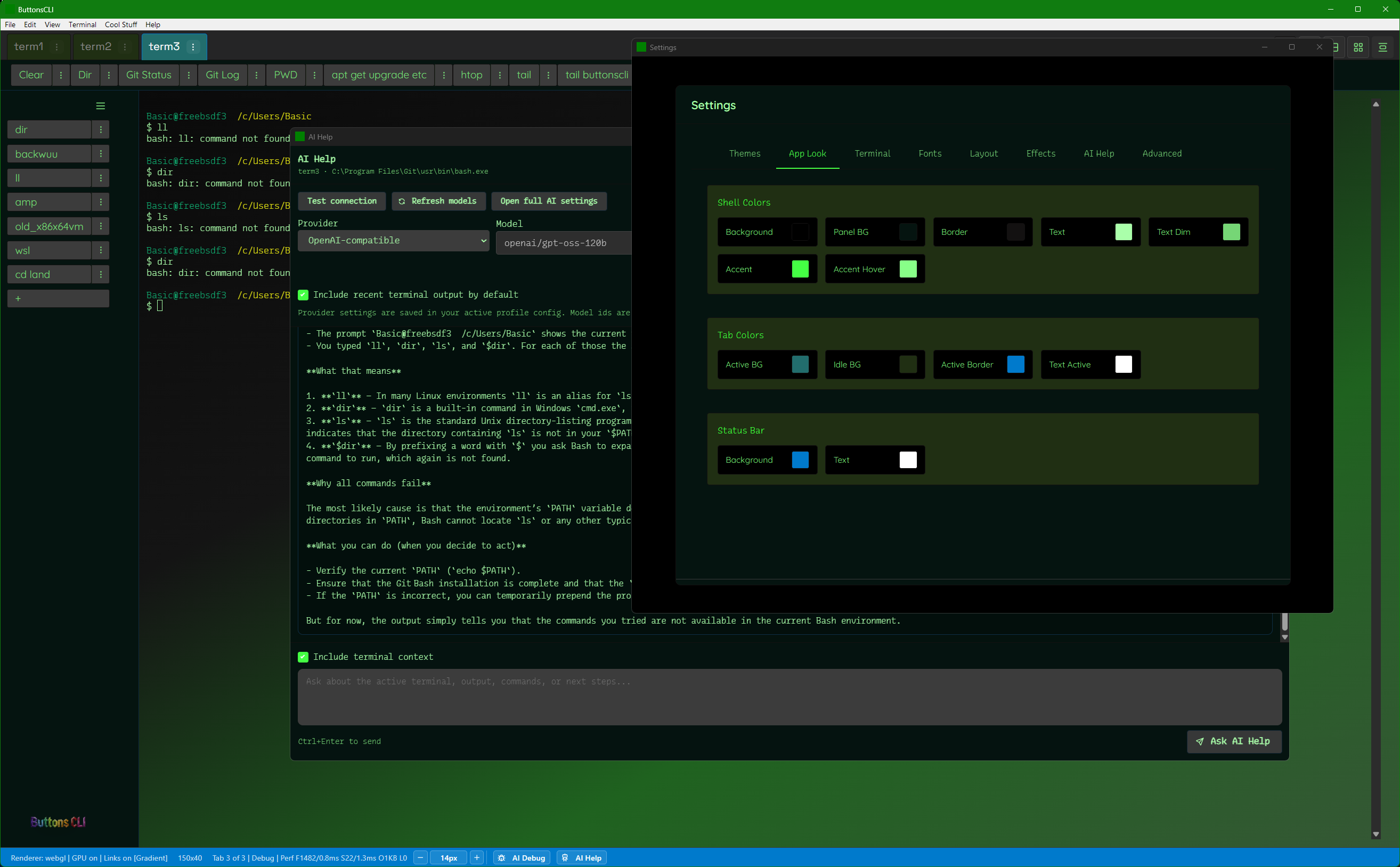
Dark green theme with Settings modal open showing Shell Colors, Tab Colors, Status Bar color pickers — neon green palette

Green theme. Color pickers for Shell Colors, Tab Colors, Status Bar. Or vibe-code a theme: just describe the look you want.

Idle effects — more than decoration

When you're not typing, it
does something useful.

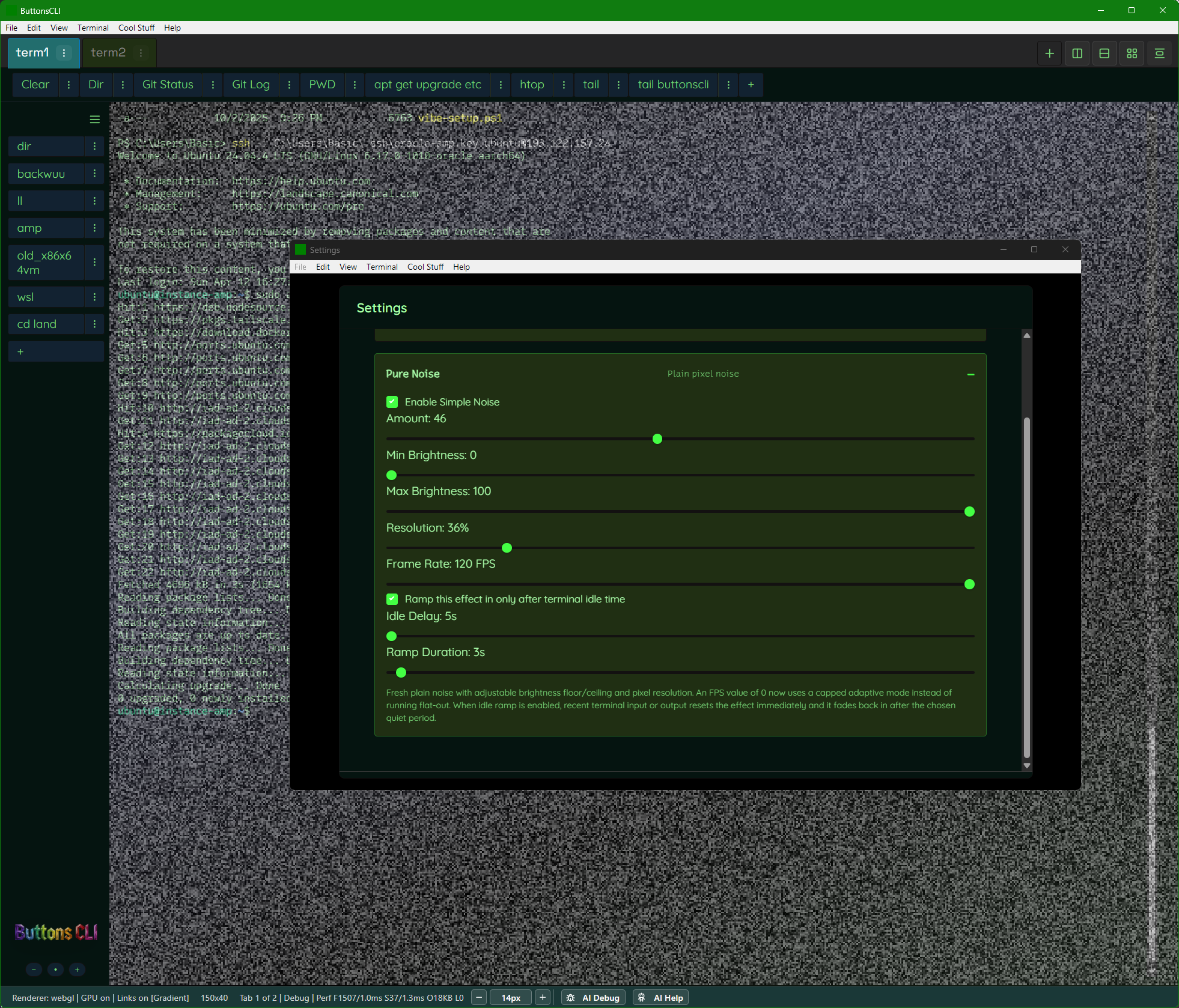
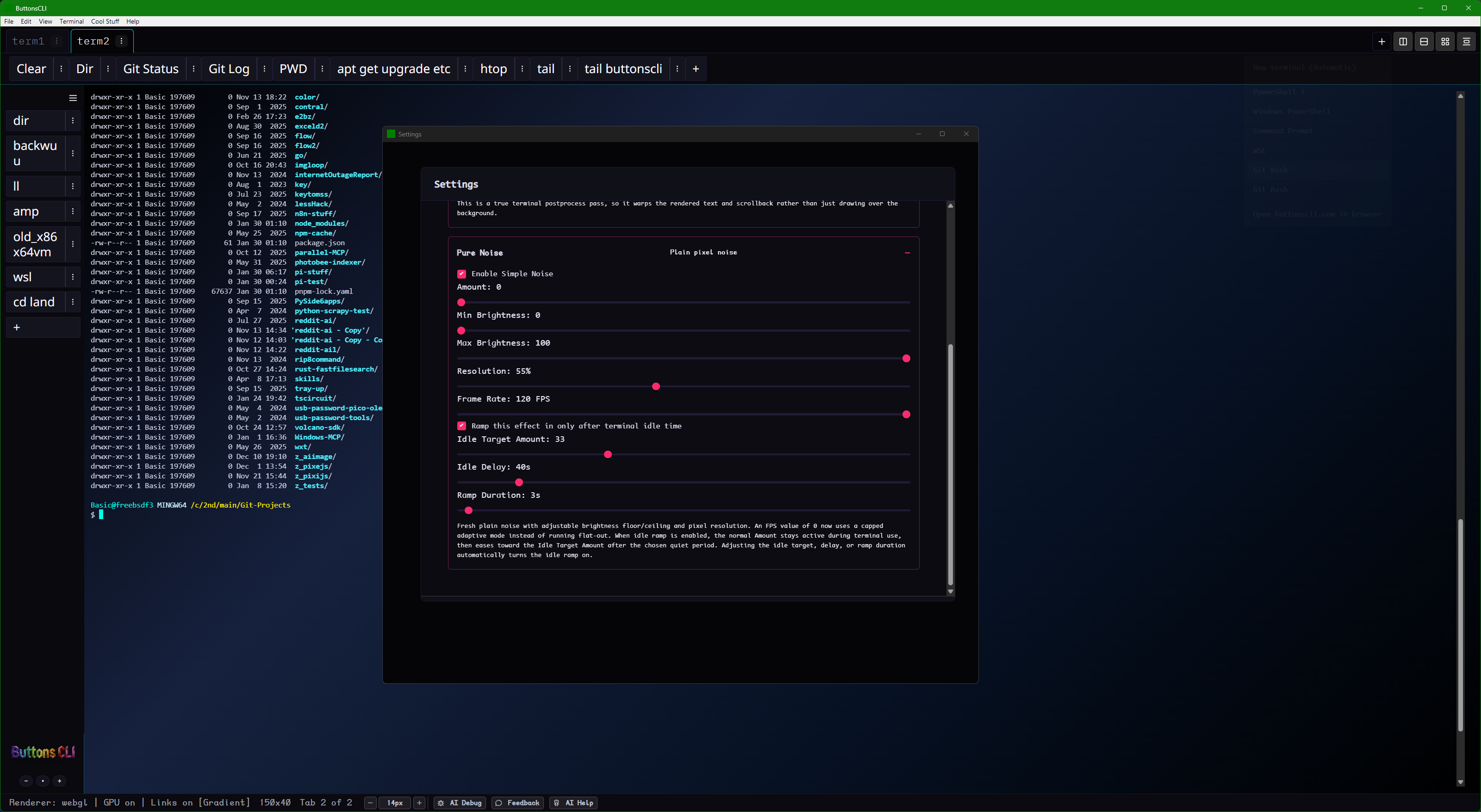
The optional TV static effect isn't just nostalgic eye candy. It serves a real cognitive purpose: if a background tab sits idle too long, the static intensity slowly ramps up. This creates a gentle, sensory-friendly notification — no sudden alarms, no disruptive flashes. Perfect for staying aware of inactive panes while staying focused on what you're actively working on.

Also has a "Simple Noise" mode for a subtler constant texture. Configurable intensity, timing, and ramp speed. Entirely optional.

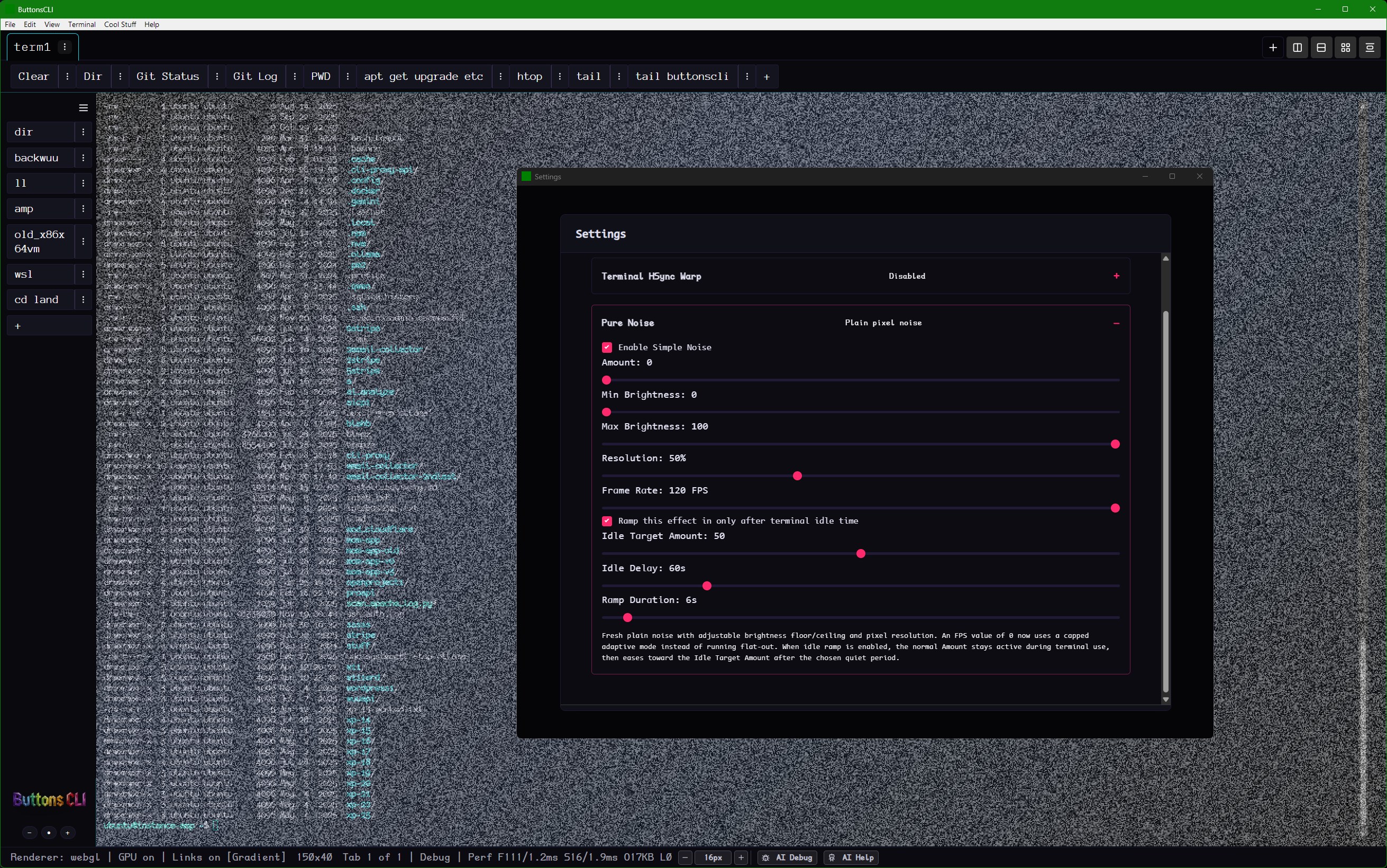
Terminal with heavy TV static noise overlay on an SSH session, Settings window showing Pure Noise config with neon green sliders

TV static on an idle terminal. It's a calm, analog-style nudge that something in the background might need attention.

Roadmap — vote for what matters to you

Real plans. Which ones matter most to you?

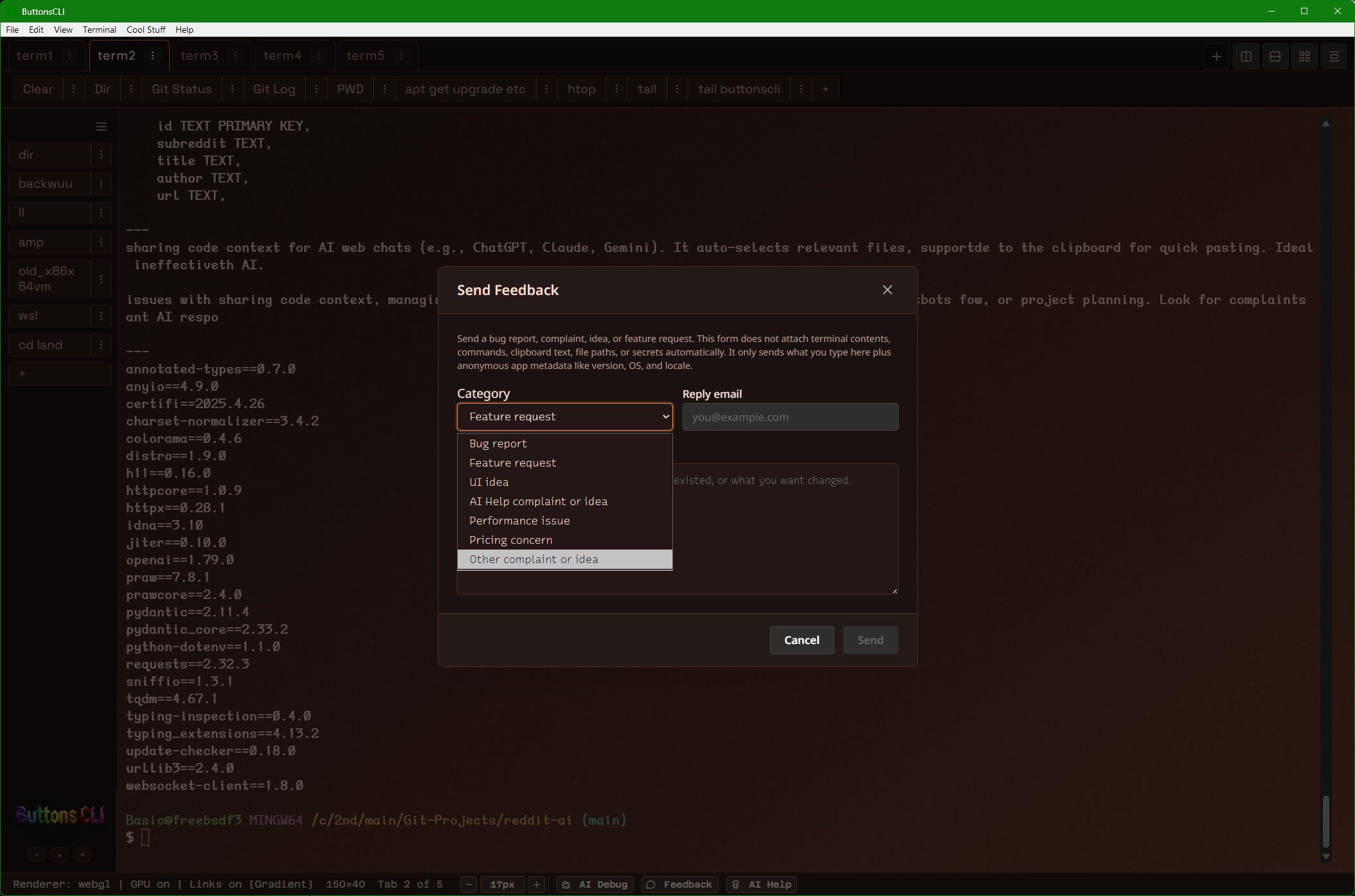
Send feedback directly from the app — or use the thumbs below to register interest. Nothing is vaporware, just priorities.

Pro · Useful

AI Safety Watch

Checks commands and context before execution. Flags destructive patterns. You still approve everything.

Pro · Useful

Agentic workflows

Give it a goal. It plans steps, runs commands, reads output, adjusts. You approve at each checkpoint.

Pro · Useful

Installer buttons

One-click installs for git, npm, coding agents. SSL setup. nginx config. Common server tasks automated.

Pro · Useful

Settings Synchronization

Sync your layouts, custom themes, preset action buttons, and SSH configurations across all your devices. Set it up once, use it everywhere.

Pro · Fun

More ADHD-friendly features

Focus mode, customizable visual hierarchy, reduced-motion support, neurodivergent-optimized workflows.

Pro · Useful

Mobile remote control

iOS/Android apps to view and control running terminal sessions from your phone.

More screenshots

There is a lot more in the app than fits in the main scroll.

The page above keeps the pitch tight. This section is the full screenshot vault for the images not already used in the main story.

Open the screenshot vault
21 more screenshots: layouts, Linux server work, settings, themes, feedback, and AI tooling.
+
4-pane grid layout with AI Help
Layouts

4-pane grid view

Shows the denser multi-pane layout with sidebar buttons and AI Help inside the grid.

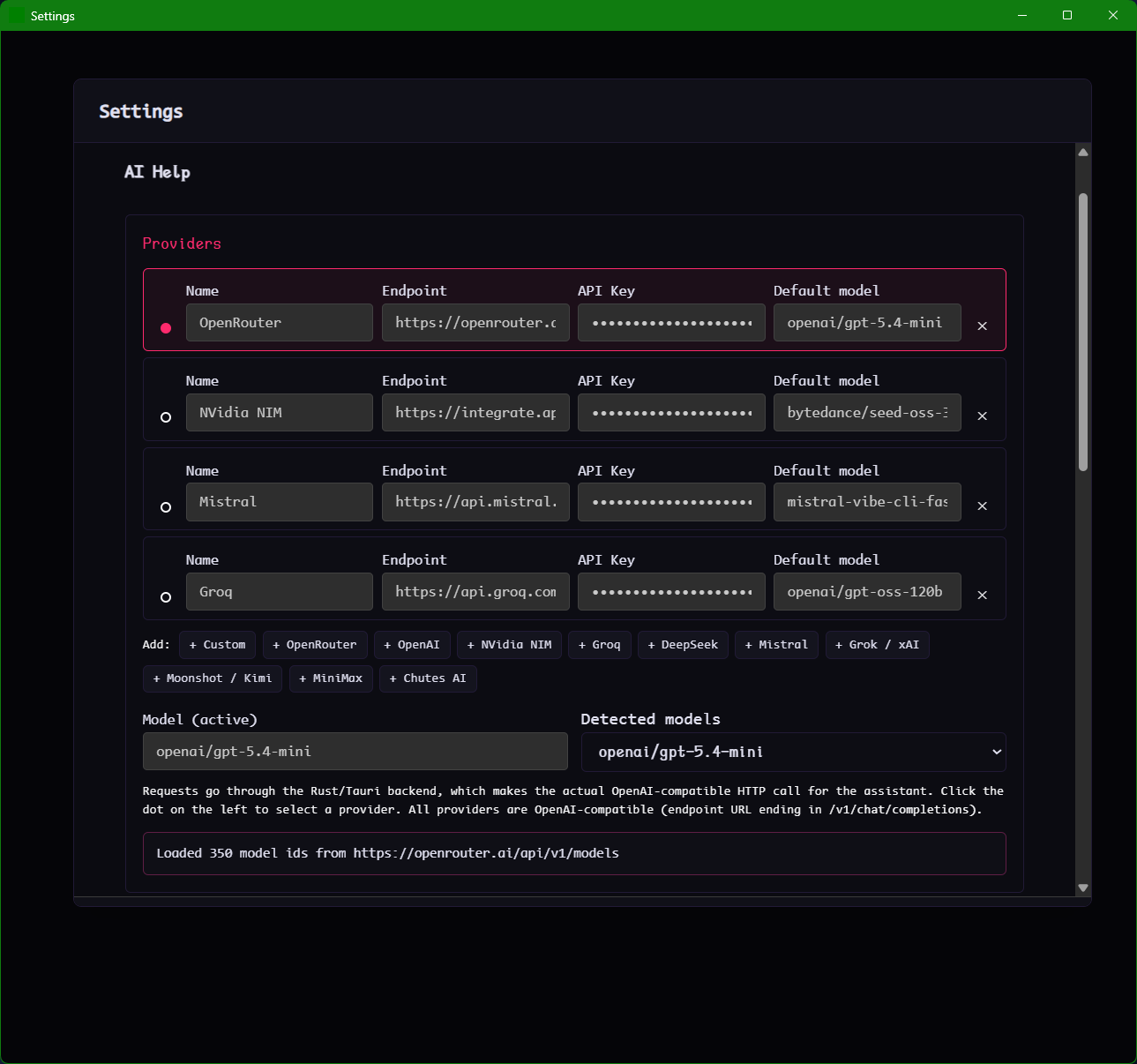
AI Help provider settings
AI Setup

Provider settings

The provider list and model wiring for people who want more control over AI Help.

Debug side panel
Debug

Debug side panel

Raw payloads and rendered answers for diagnosing provider or prompt issues.

Ubuntu update explained
Linux

Update output explained

AI Help breaking down Ubuntu package messages without leaving the terminal.

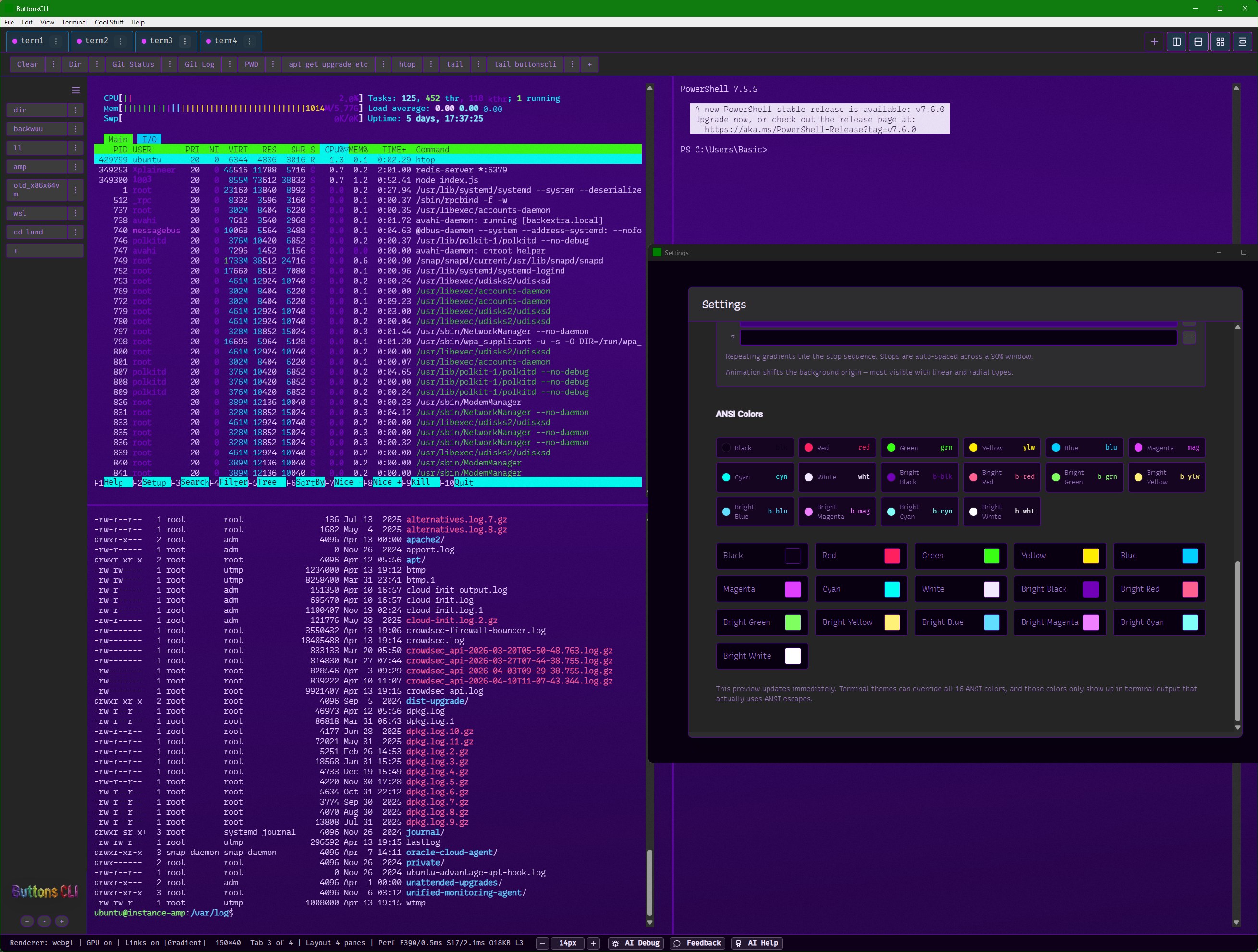
4-pane with ANSI colors
4 Panes

ANSI colors and process panes

Monitoring, file browsing, and theme controls all at once.

Clean blue theme
Themes

Clean blue theme

A calmer visual direction with effect controls and layered settings UI.

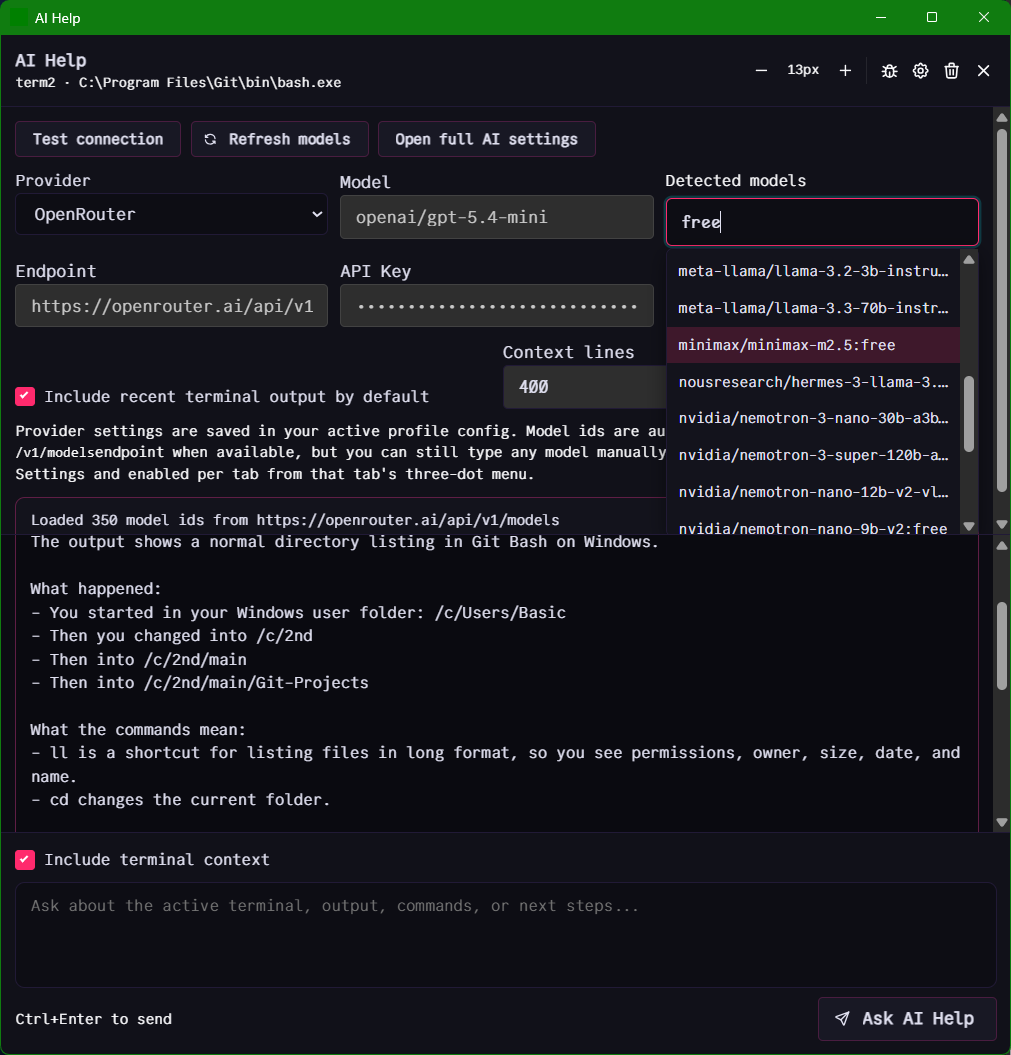
Free model filter
AI Models

Free model filter

The settings flow for finding no-cost AI models without digging through provider docs.

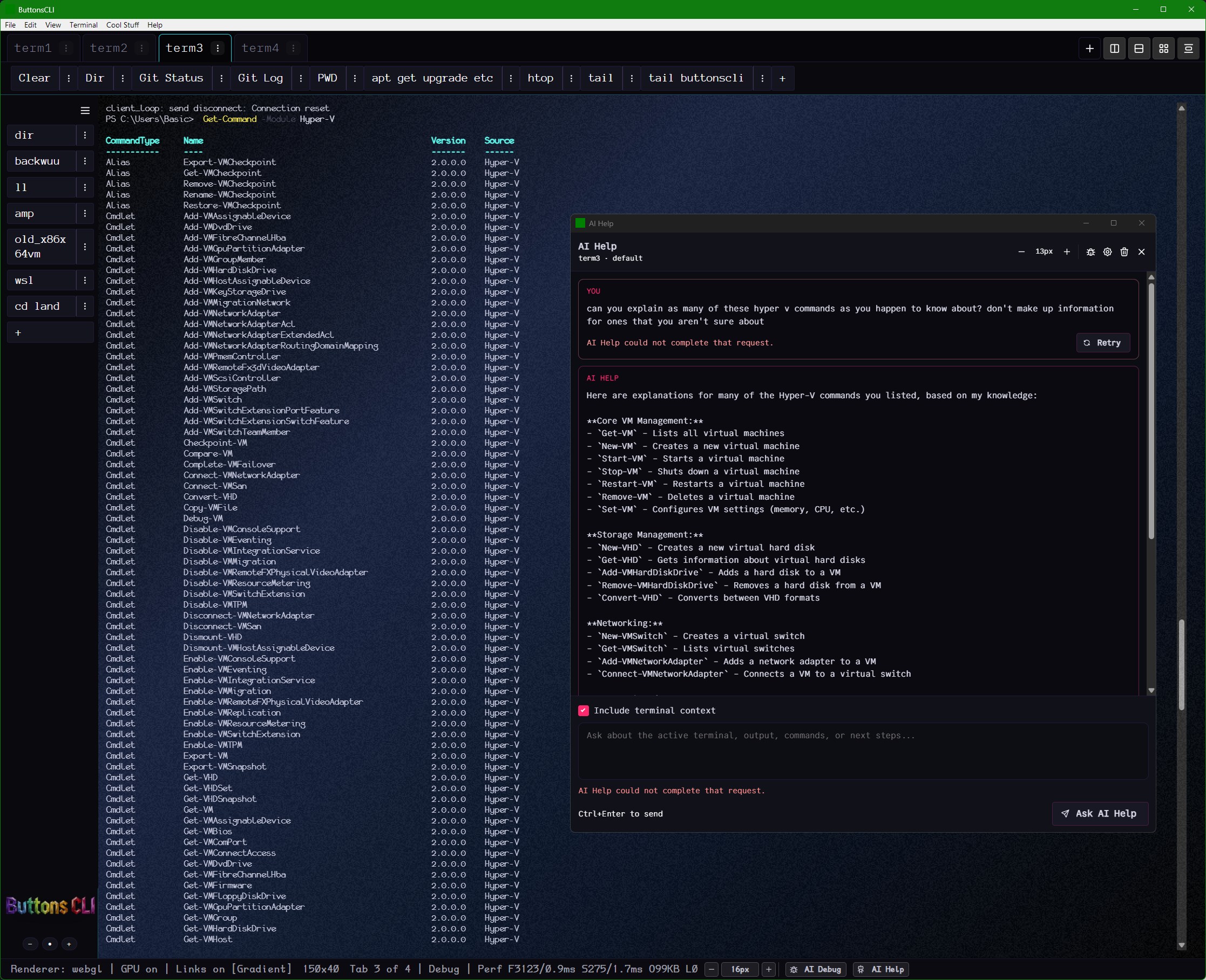
Hyper-V explain mode
PowerShell

Hyper-V explain mode

Long command lists turned into grouped explanations inside AI Help.

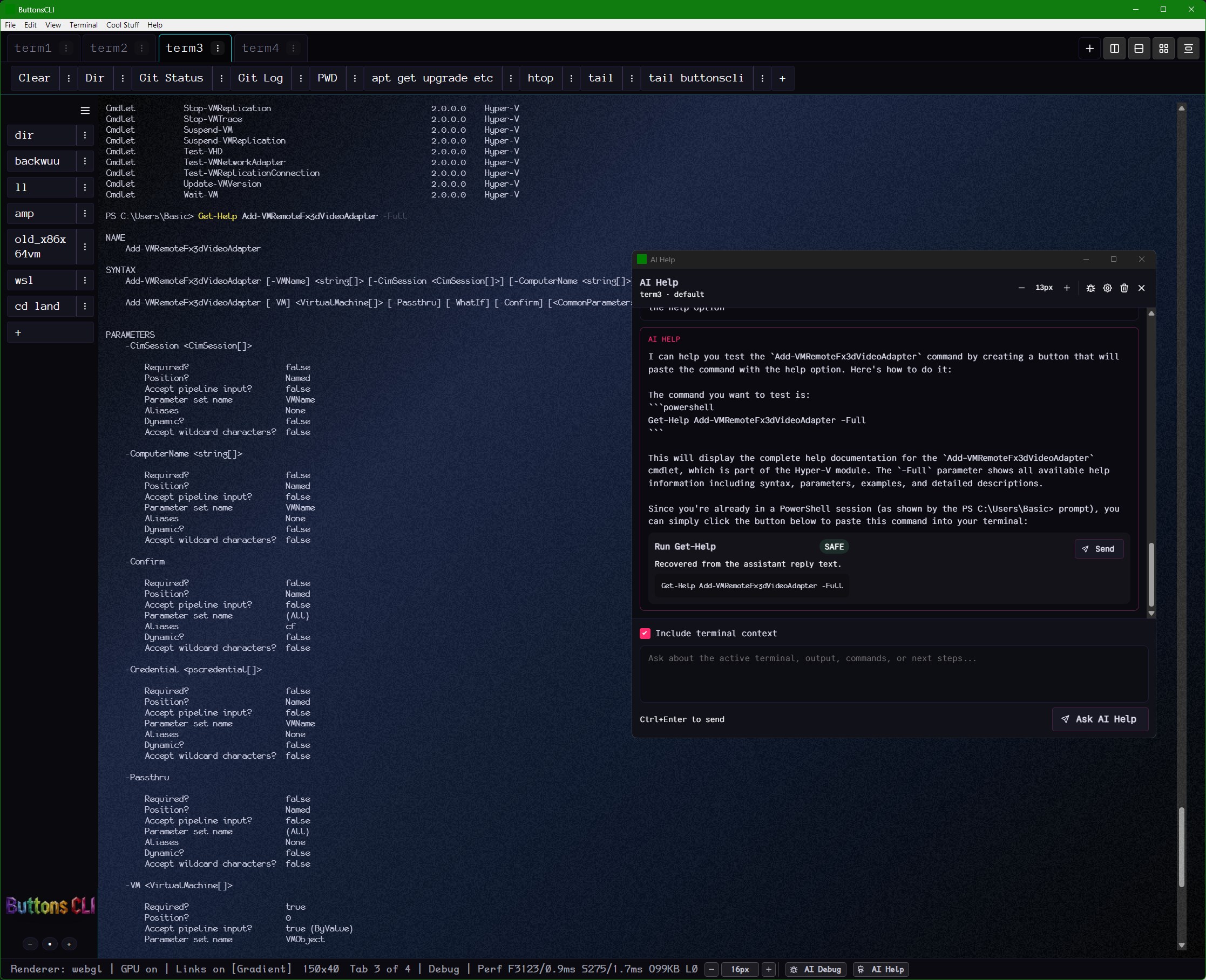
Create a command button
Buttons

Create a command button

AI Help proposing a reusable button instead of just handing back text.

Linux split-screen work
Servers

Linux split-screen work

Server output on one side, AI or model tooling on the other.

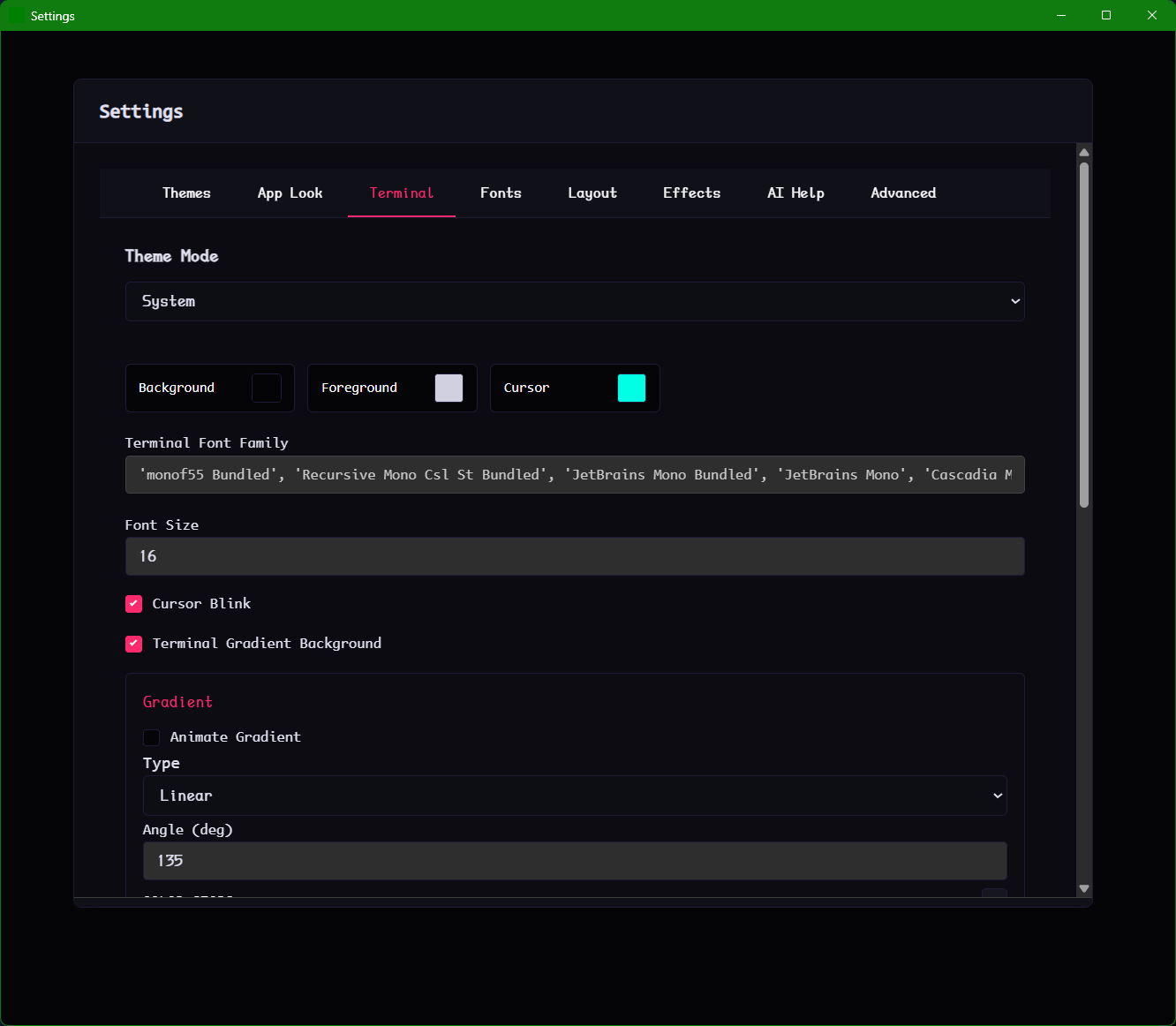
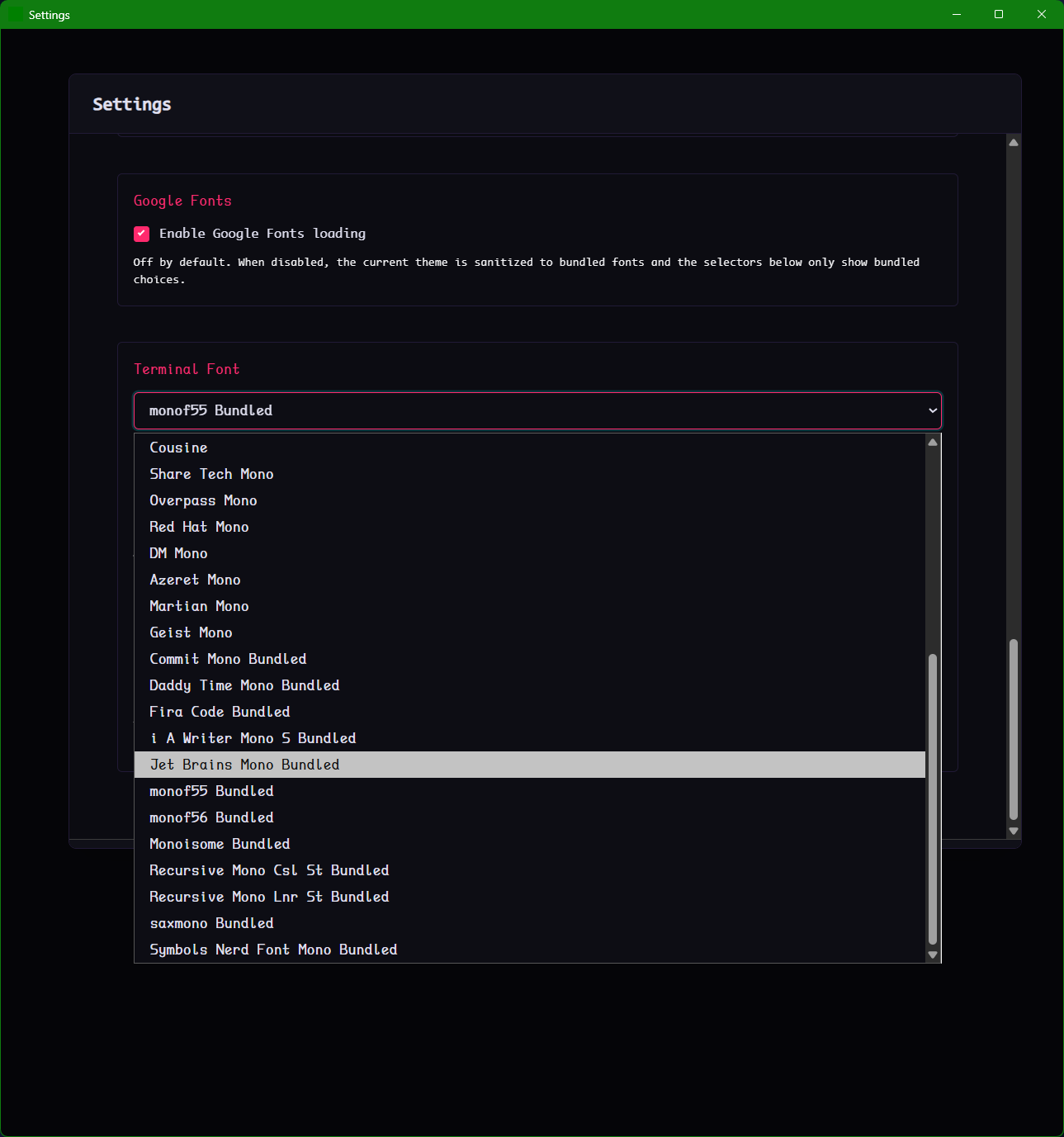
Font picker
Fonts

Font picker

The searchable font dropdown, including the optional Google Fonts loading toggle.

Mild light theme
Light Mode

Mild light theme

A softer light mode that still keeps AI Help readable and integrated.

SAFE review modal
Review

SAFE review modal

The simpler review state for low-risk AI-generated commands.

Feedback dialog
Feedback

Feedback dialog

The in-app place for bug reports, feature requests, and UI ideas.

Heavy idle static
Effects

Heavy idle static

The louder TV-static version of the idle effect with settings visible.

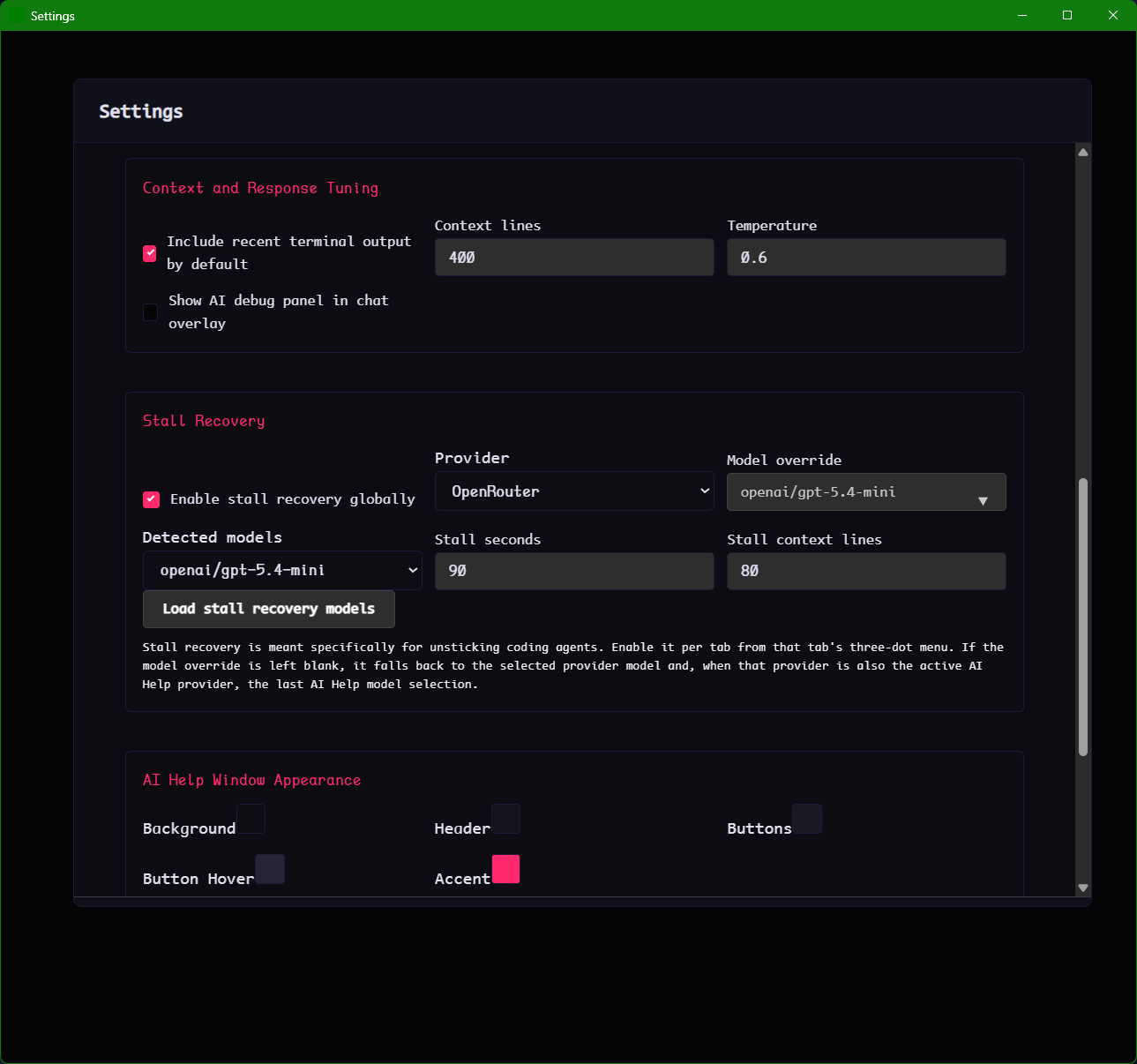
Stall recovery settings
Agents

Stall recovery settings

Controls for nudging stuck coding agents back into motion.

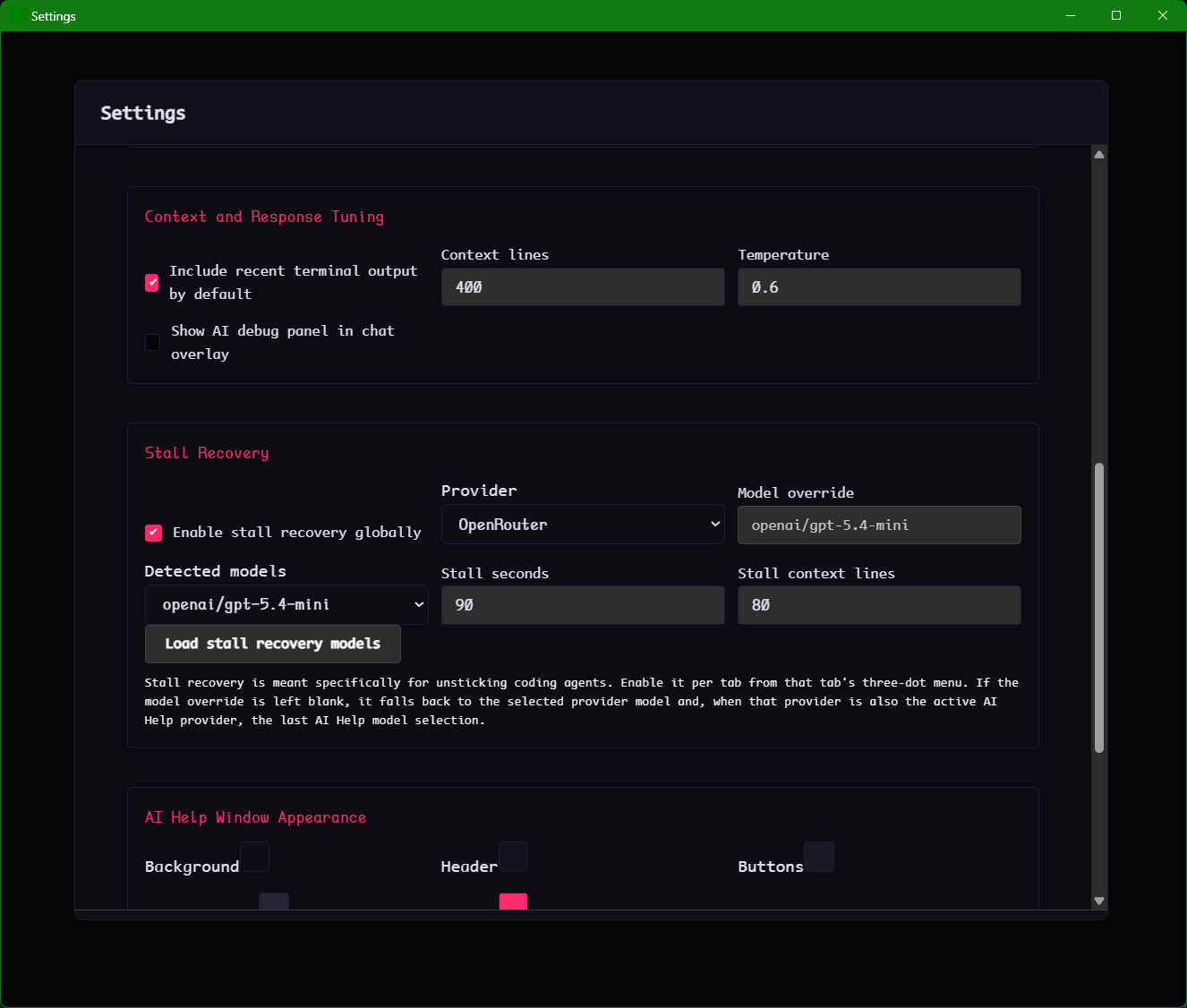
Recovery model picker
Agents

Recovery model picker

The model selection flow for the separate stall-recovery path.

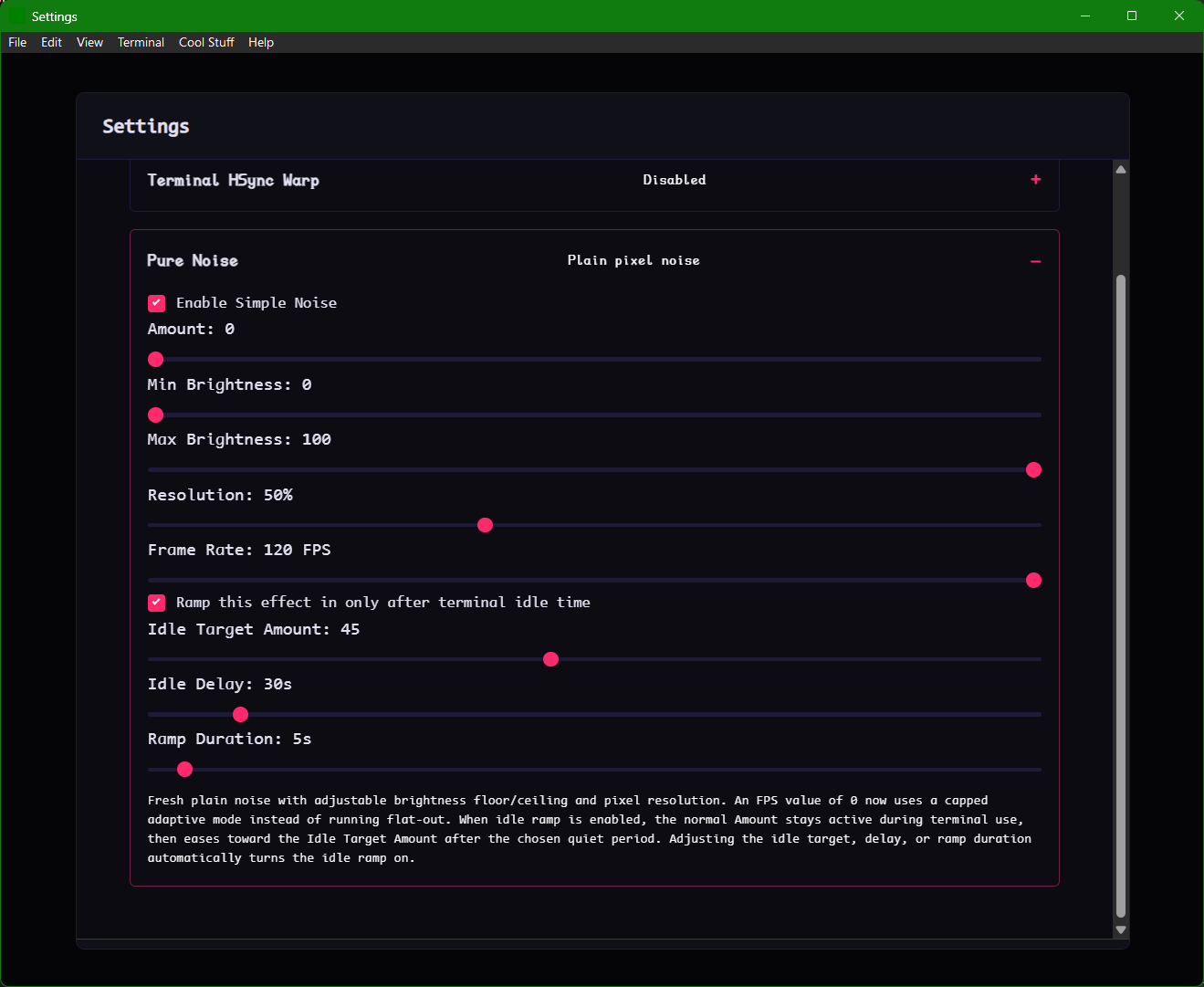
Idle-time noise controls
Effects

Idle-time noise controls

The exact timing settings behind the idle-triggered static effect.

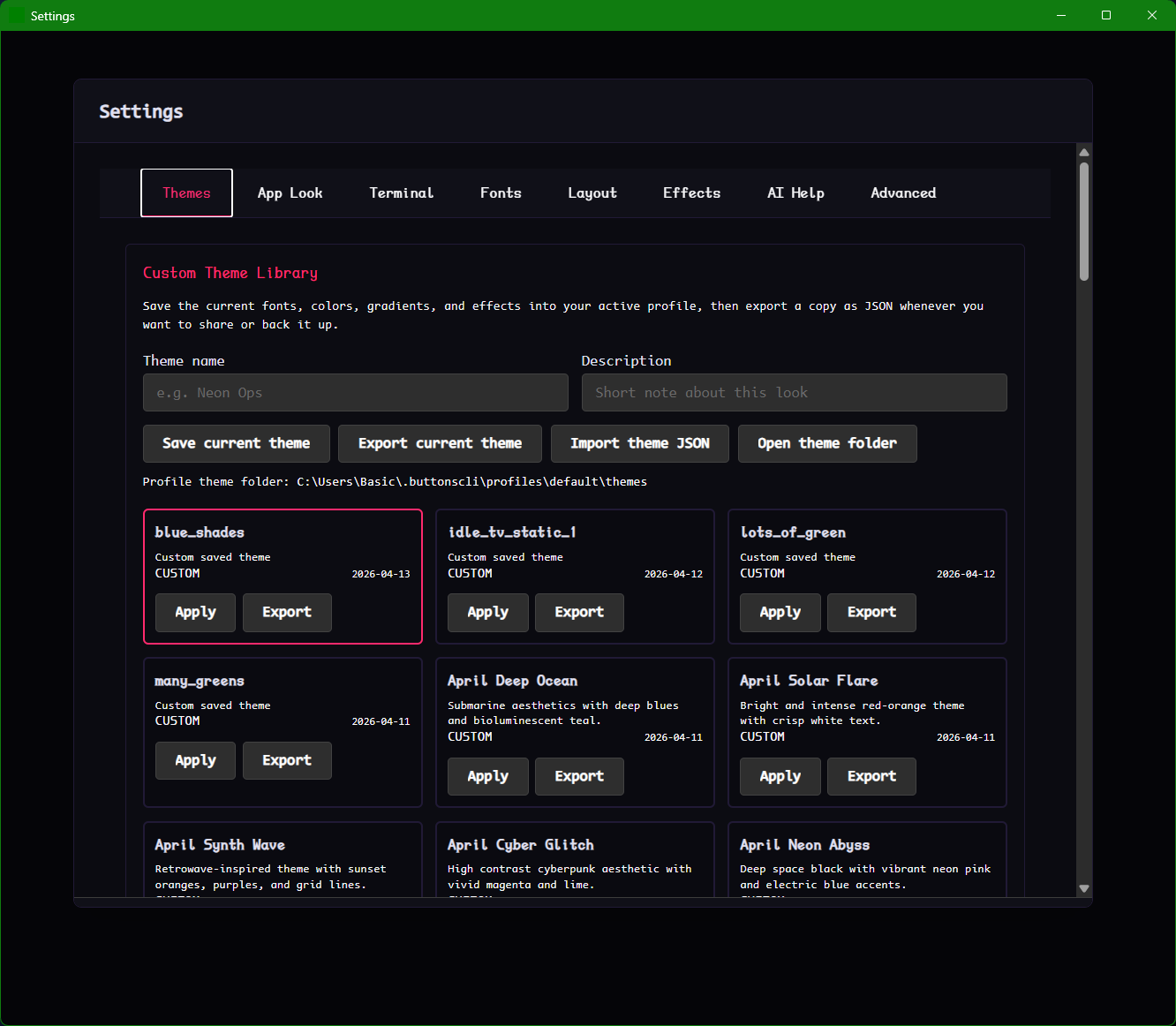
Theme library
Themes

Theme library

Saved themes, import and export, and the custom theme grid.

Layout button close-up
Controls

Layout button close-up

The row of pane arrangement controls that keeps layout actions visible.

Earlier landing page concept
Website

Earlier landing page

A previous web concept that still helps show the product voice and visual direction.

Now live on all platforms

Already released.
Download and go.

Windows, macOS (M1+), and Linux are all available now — pick your platform above. Want to stay in the loop for future updates? Drop your email below.

Stay Updated

Sign up for future updates.

ButtonsCLI is live now. Leave your email to get notified about new features, themes, and releases.

"Some people want the terminal to disappear. ButtonsCLI is for people who want to feel visual, personal, and maybe a bit dramatic — without stopping being useful."